 Brainerce Help
Connect an AI assistant
Step by step, open the Connect AI assistants dialog, pick OAuth or an API key, and wire up Claude Code, Cursor, Claude Desktop, ChatGPT, or any other MCP client.
Before you start, read MCP if you haven't. It covers what MCP is and the most important thing to know: MCP tools run immediately, with no approval step.
Open the connection dialog
- Go to Settings → Authentication.
- On the API Keys tab, click MCP (top right).
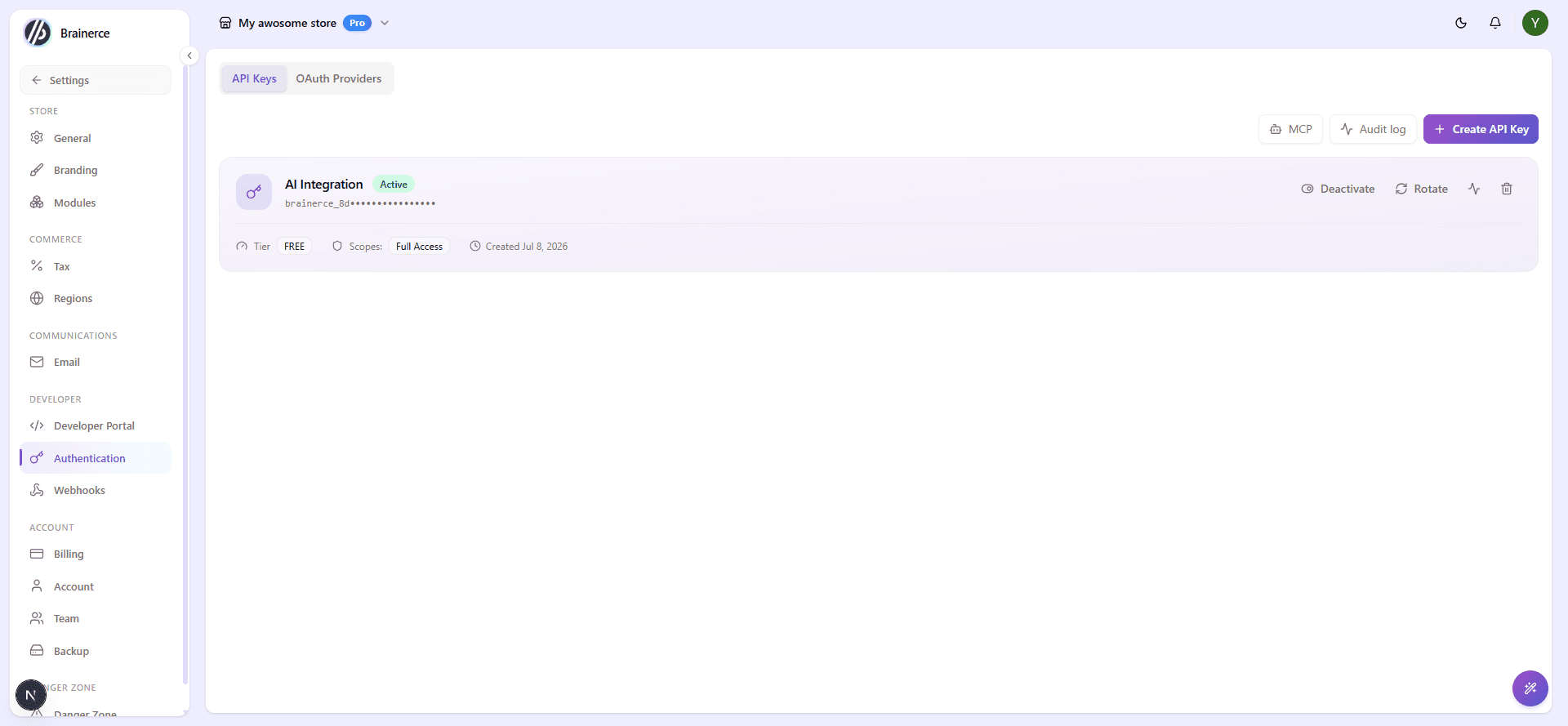
The Connect AI assistants dialog opens, showing your store's Admin MCP server URL and setup instructions per client.
Connect your AI client
The dialog has a tab per client. Copy the block for the one you use, and the server URL is already filled in.
Claude Code
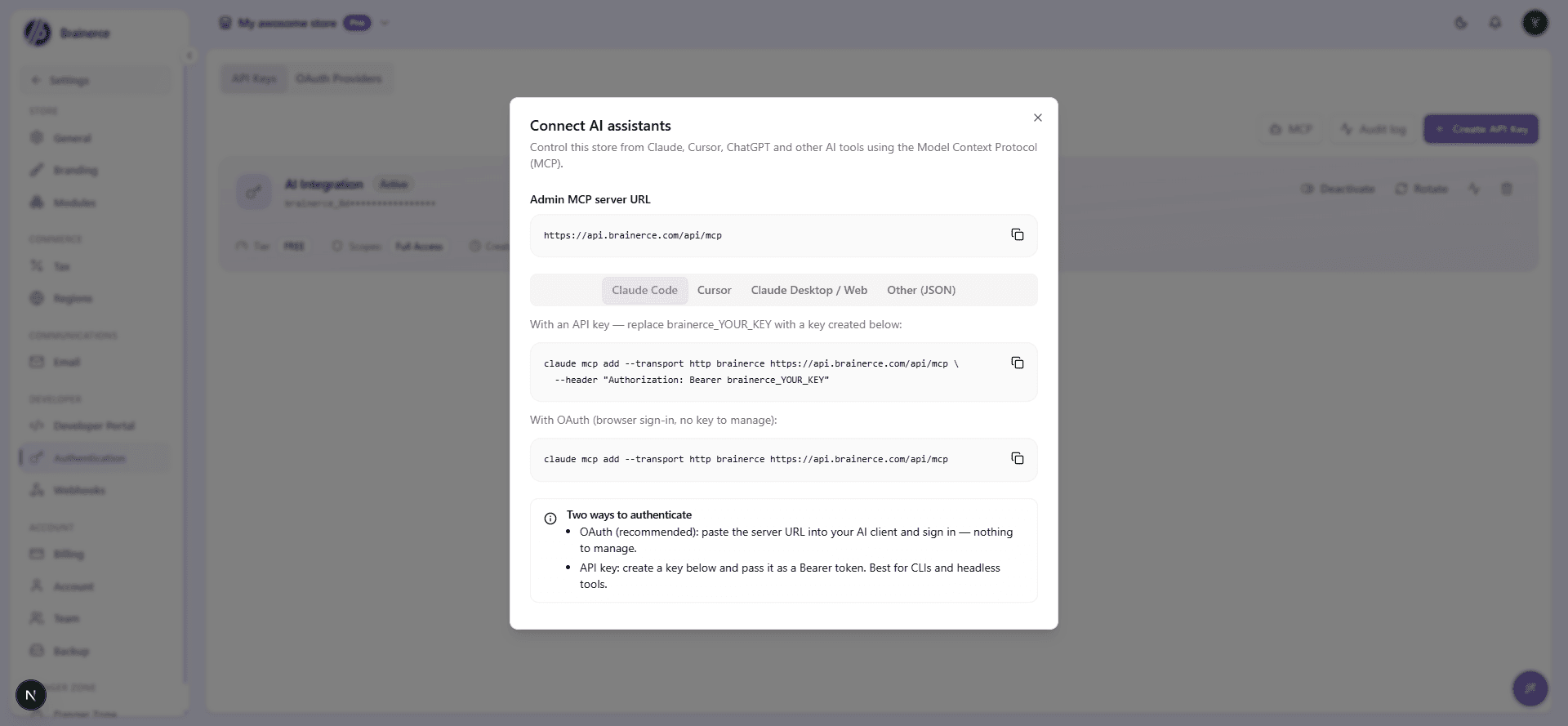
With an API key:
claude mcp add --transport http brainerce https://mcp.brainerce.com/api/mcp \
  --header "Authorization: Bearer brainerce_YOUR_KEY"
With OAuth (opens a browser sign-in, with no key to manage):
claude mcp add --transport http brainerce https://mcp.brainerce.com/api/mcpPrefer OAuth here if you can. Categories, tags, brands, product options, product custom fields, add-on options, order bumps, bundles, shipping zones and rates, loyalty, store settings, contact forms, email domains, installing an app and switching a channel live only work over OAuth, and an API key cannot reach them however it is scoped. See some actions need you to sign in.
Cursor
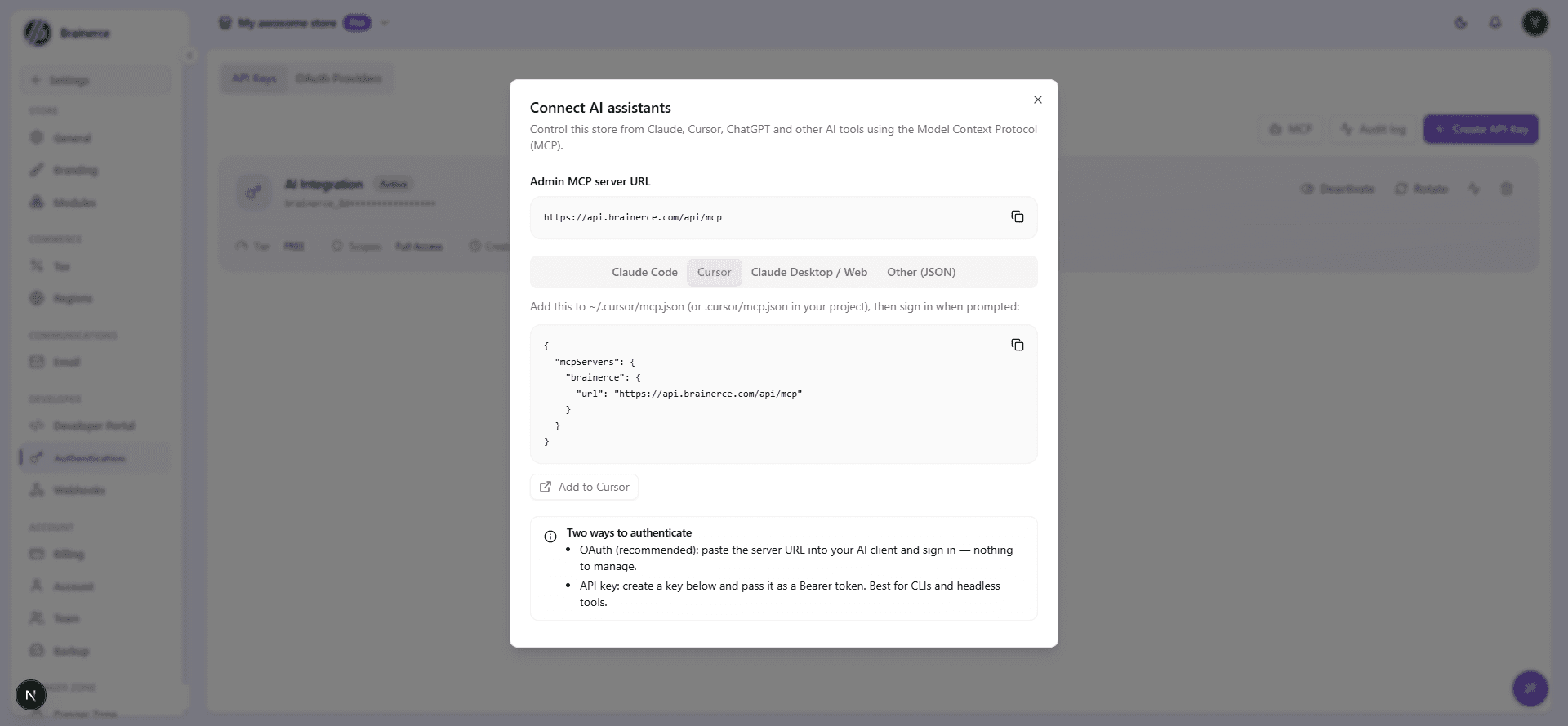
Add this to ~/.cursor/mcp.json (or .cursor/mcp.json in your project), then sign in when Cursor prompts you:
{
  "mcpServers": {
    "brainerce": {
      "url": "https://mcp.brainerce.com/api/mcp"
    }
  }
}
The dialog also has a one-click Add to Cursor button that does this for you.
Claude Desktop / Claude Web
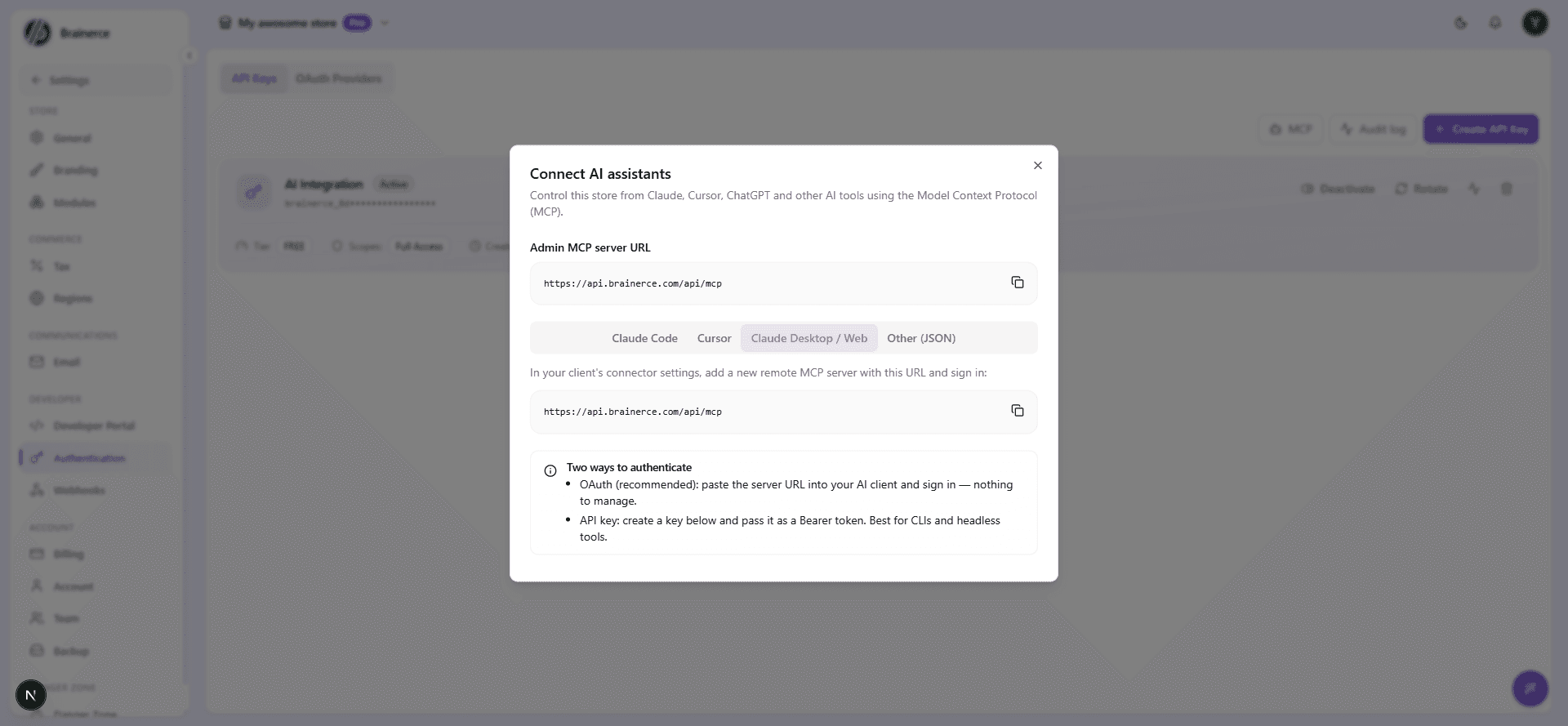
In your client's connector settings, add a new remote MCP server using https://mcp.brainerce.com/api/mcp and sign in.
ChatGPT
The reviewed Brainerce app is the short way
Brainerce is a reviewed app in the ChatGPT app directory. Search for Brainerce in ChatGPT's apps, enable it and sign in to your Brainerce account. That is the whole setup: no developer mode, no address to paste, no risk notice. It is the same 54 actions as the address below, so everything in this article about what ChatGPT can and cannot do applies to it too.
Open a new store from ChatGPT, with no dashboard
You do not need a Brainerce account, or a store, before you start. Enable the Brainerce app in ChatGPT, then say what you want in plain words: "open a shop for my candles", "build me an online store and add these three products". ChatGPT does the work first. The moment an action needs your store, ChatGPT opens Brainerce's sign-in window once.
- No account yet? Click Create an account in that window and sign up there.
- No store yet? The same window asks for a store name and a country, creates the store on the spot, and shows the permissions ChatGPT is asking for. Click Allow.
The window closes and ChatGPT carries on with the store it just created. Nobody visits the dashboard and nothing is copied or pasted. The store starts on the Free plan, with no card needed. Country sets the default currency and language, so pick the country you sell from. Both can be changed afterwards, from ChatGPT or from Settings, but a currency change relabels every price without converting anything, so do it before you add prices.
What the ChatGPT app can do
In plain words, the Brainerce app in ChatGPT can, with its 54 actions:
- Name your store, set its country, its currency and its default language, and whether prices include VAT. Changing the currency relabels every price; nothing is converted, so ChatGPT asks you to confirm once the store has orders and refuses while a checkout is in progress. Changing the default language does not translate anything.
- Tell you what is still missing before you can sell. Ask "what is left?", "how do I start selling?" or "is my store ready?" and it checks six things: store name, a sales channel, products published to it, a shipping option, a payment provider that is live, and tax. Each comes back as done or not, with the next step. A payment provider in test mode counts as not done, because test mode declines real cards.
- Add a product from a photo. Attach a picture to the conversation and say "add this to my store". The photo becomes the product image. On an existing product, an attached photo is added to the gallery; a list of image links replaces it.
- Add, edit and duplicate products, put them in categories, tag them, and write custom-field values a product already carries.
- Set stock, for a simple product or for one size or colour of a product with variants.
- Publish products to your storefront, one at a time or the whole catalog at once. A product is not visible on a storefront until it is published to that sales channel, and adding a product does not publish it. Ask "publish it to my shop", or "put all my products on the storefront".
- Create a sales channel for a storefront, list the ones you have, and switch a channel live: once your site is deployed at its public address, ChatGPT records that address and moves the channel from test to live. A channel in test mode takes no real orders. This does not deploy anything and does not connect a payment provider.
- Add a shipping zone and a shipping price: which countries you deliver to (or everywhere), then a flat rate, free delivery over an amount, a weight-based or order-value-based rate, or local pickup. A zone with no price on it offers nothing at checkout.
- Add a tax rate. Switch tax on, then add the rate you give it, for a country or a region. ChatGPT uses the number you say and never one it assumes; the rate is your legal figure, and nothing is registered or filed anywhere. With tax on and no rate, checkout charges 0 tax.
- Work orders: find them, see who bought what, mark as shipped with tracking, move the status, cancel.
- Look up customers and their order history.
- Create voucher codes (a code the shopper types) and automatic discounts (no code), preview what a code would do to an order, switch an automatic discount off.
- Read reviews and product ratings.
- Report on sales: revenue, order counts by status, best sellers, average order value.
Actions that change your store are marked as such, so ChatGPT asks before running them.
What Claude, Cursor and other assistants can do
Claude Code, Cursor, Claude Desktop and any other client connected to the plain address see the full set: 524 actions, everything the ChatGPT app has plus, in plain words:
- Store settings: timezone, contact email and phone, social links, brand colours, logo, homepage description, which dashboard sections are on, extra storefront languages, and activating a store that sells without a payment provider (cash on delivery, bank transfer).
- Products in depth: variants, product options, add-on options (gift wrap, toppings), kit contents, custom-field definitions, translations, regional prices, pricing formulas, bundles and order bumps, hiding a product from Google Shopping without unpublishing it, and bulk edits (prices, stock, status, categories, tags, publishing).
- Stock in depth: the movement history of one product, how fast each product sells, and reserving part of the stock for one sales channel. A channel reservation does not add or remove stock; it only decides who may sell it. Warehouses, suppliers and purchase orders stay in the dashboard.
- Orders in depth: create an order by hand for a phone or counter sale (it reserves stock, sends no confirmation email and records a shipping amount rather than a method; running it twice creates two orders), refunds and returns, mark as paid, change the shipping address, your own status labels, order custom fields and their definitions, and the fields shoppers fill in at checkout.
- Shipping in depth: edit and delete zones and rates, shipping classes, a preview of what a buyer at an address would pay, the address you ship from, parcels and tracking, and buying a carrier label. A label costs money at your carrier, so the assistant quotes first and buys only after you confirm; carrier credentials are entered in the dashboard, never through the assistant, and the parcel tools work only once a shipping app is connected.
- Customers in depth: addresses, the contact-form inbox (read messages, reply to the shopper, leave a staff-only note), contact forms themselves, the storefront bot's settings and conversations, and the newsletter benefit. A reply to an inquiry emails the shopper at once and cannot be edited or recalled.
- Marketing in depth: edit and delete vouchers and discounts, gift cards, donations, subscriptions, email campaigns, and the loyalty club: the programme, its earning rules (signup, review, social share), rewards, tiers, badges, paid membership plans and referrals. A club earns points through its per-order rate and its earning rules; a club with neither set up earns nothing. The assistant can create a paid plan but cannot cancel a member's subscription; the member does that from their own account.
- Content: pages, FAQ, header, footer, announcements, the blog, the media library, and product reviews (hide or show).
- Email: edit, preview, reset and roll back the order emails, send a test to your own inbox (never to a customer), read the send log, and add a custom sending domain. Adding a domain returns the DNS records to paste at your registrar; checking it re-reads the status and does not trigger verification, which happens on its own after the records propagate.
- Apps: browse the marketplace, install an app and change its ordinary settings, pause, resume or remove it, and run a connector sync. The assistant can never enter or read an API key, password or token; those go in only in the dashboard, and a payment gateway installed from chat takes test cards only until you connect it live there.
- Webhooks and backups: see whether webhooks are healthy, edit, pause, test or delete a subscription; start an export or full backup, list them, get the download link, and set the backup schedule.
- Reports in depth: repeat customers and retention, voucher and discount performance, a stock summary, storefront traffic by country, source, device and funnel, whether each storefront is connected, and loyalty performance.
- Team: invite, change roles, remove.
- Deleting products, vouchers, discounts, categories, tags and the rest.
Everything the assistant does still runs inside the permissions you granted at sign-in.
What still needs the dashboard
No assistant can do these, ChatGPT included, and if it says so it is telling you the truth. Do them at brainerce.com:
- Connect a payment provider and switch it to live mode: Apps → Browse → Payment Gateways. An assistant can install the app; the credentials, the sign-in with the provider and the switch to live are entered only in the dashboard. Until a provider is live, the store cannot take real money.
- Enable that provider for each region you sell to: Settings → Regions.
- API keys: creating, rotating and deleting them.
- Webhooks: creating a subscription and rotating its secret, because both show the signing secret once.
- Restoring a backup.
- Carrier credentials for a shipping app, and every other password, key or token.
- Warehouses, suppliers and purchase orders, and drawing a delivery area on the map.
- SEO Autopilot, Search Console and ads campaigns.
- Billing, plan changes, transferring or deleting the store.
On the ChatGPT app specifically, these are dashboard work too, because its 54 actions do not include them:
- Tax rates beyond adding one: editing or deleting a rate, and tax classes. Settings → Tax.
- Delete anything: products, vouchers, discounts, categories. ChatGPT can switch a discount off or leave a product as a draft; it cannot delete.
- Refunds and marking an order as paid. Money never moves from ChatGPT.
- Change a customer's shipping address on an order, or create an order by hand.
- Bulk edits beyond publishing, and CSV imports, including the Migration Tool.
- Blog posts, pages, the header and footer, SEO and email campaigns.
- The media library (browsing pictures you already uploaded). Attaching a photo to the chat works instead.
- Add-on options (gift wrap, toppings), custom-field definitions (creating a new field, rather than filling one in), kit contents, and digital or downloadable products.
- Timezone, contact details, colours, logo and extra languages on the store settings.
- Shipping classes, parcels and labels, and editing or deleting a zone or a rate.
- The contact-form inbox, loyalty, gift cards, apps, email settings, webhooks and backups.
- Staff and permissions.
Adding the address by hand
If the app is not available to you, or you want the compact address described further down, ChatGPT calls a custom MCP connection an "app," and gates it behind a developer-mode toggle. It can't vet every server a user might add, so it hides the option by default.
- In ChatGPT, open Settings → Apps → Advanced.
- Turn on Developer mode (labeled Elevated risk, which is what allows adding unverified connectors that could modify or erase data).
- Go back to Apps and click Create app.
- Give it a Name (e.g. "Brainerce"). Icon and Description are optional.
- Under Connection, keep Server URL selected and paste
https://mcp.brainerce.com/api/mcp/openai. This is the address that works in ChatGPT, and the ChatGPT tab of the Connect AI assistants dialog shows exactly it, so you can copy it from there. If you paste the plain address instead, the connector signs in and then has no actions at all. - Leave Authentication set to OAuth.
- ChatGPT shows its own risk notice at this point. Check I understand and want to continue, then click Create.
- Sign in on the Brainerce screen that opens, pick your store, and approve the requested permissions.
ChatGPT's own warning here is worth reading before you check the box: "Custom MCP servers introduce risk... OpenAI hasn't reviewed this MCP server. Attackers may attempt to steal your data or trick the model into taking unintended actions, including destroying data." It's making the same point as our warning, from the other side of the connection. Take it seriously.
Why the ChatGPT address is not the plain one
Brainerce gives an assistant every product, order, discount and content operation as its own action, several hundred in all and more with every release. ChatGPT has a ceiling on how much of that list it will load, and Brainerce is well over it. Paste the plain https://mcp.brainerce.com/api/mcp into ChatGPT and the likely result is a connector that signs in fine but then can't do anything, because none of the actions loaded. Nothing tells you that happened, which is why this matters more than it sounds.
The /openai address is the same store and the same permissions, cut to the 54 actions that run a store day to day: products, stock (including per variant), publishing products to a storefront one at a time or all at once, categories, tags, orders, fulfilment and cancellation, customers, voucher codes, automatic discounts, product reviews, sales channels and switching one live, shipping zones and prices, the store's name, currency, language and tax settings, a tax rate, a setup checklist, and the analytics summaries. Each one is listed by name, so ChatGPT picks the action it needs and runs it. The full list in plain words is under What the ChatGPT app can do.
What is not on this address. The remaining actions are absent rather than hidden: blog and content, SEO, email campaigns, the media library, loyalty, apps, editing or deleting a tax rate, payment providers, refunds and every kind of deletion are dashboard work from ChatGPT. If ChatGPT tells you it cannot do one of those, it is telling you the truth. The list is under What still needs the dashboard, and the address below reaches most of them.
If you need an action /openai does not carry
https://mcp.brainerce.com/api/mcp/compact is the other supported address for ChatGPT. It serves 8 definitions instead of 54: one search action, three run actions, and the visual tools. Every action on the full address stays reachable through that search step, so nothing in Brainerce is switched off.
The cost is that the assistant has to find the action before it can run it, and it does not always succeed. It may report that something "isn't available" when it is, or reach for a near-miss action instead of the one you asked for. That is the trade: /openai is more reliable for everyday store work, /compact reaches everything but with a search step in front of it.
You can add both, under different names, and pick per conversation.
Cards
Both addresses draw Brainerce's visual answers, the product list, the order list and the analytics summary, because the tools carrying them are listed directly on each. ChatGPT is the only client that renders these; everywhere else the same answers arrive as text.
You can use a card, not only look at it. The product and order cards have next and previous buttons that turn the page inside the card, keeping whatever you asked for: ask for draft products only, and page two is still draft products only. All three cards have an expand button that opens them full screen, and a row of suggestion buttons along the bottom that change with what the card is showing, so a list with sold out items offers to restock them and a list with unpaid orders offers to show what is owed.
A suggestion button never changes anything by itself. It writes the request into the chat for you, the same as typing it, and the assistant answers and asks before it changes stock, an order status or anything else. This is deliberate: the button saves you the typing, not the decision. If you want the change made, reply to what the assistant asks.
The buttons appear in your own language when you are working in Hebrew or English, and in English otherwise.
Cards only appear in ChatGPT. In Claude, Cursor and every other client the same information arrives as text, with no buttons, and you ask for the next page in words.
Other MCP clients
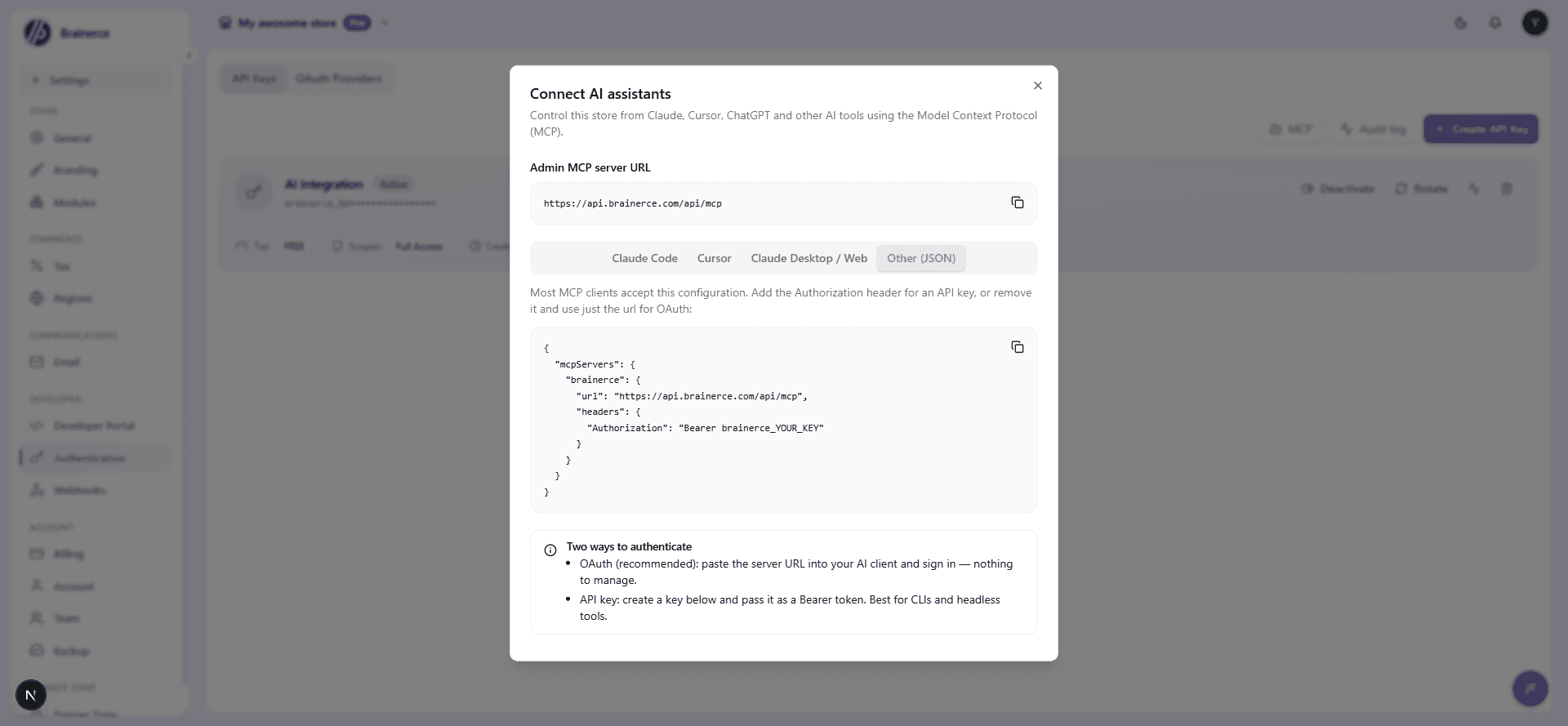
Most MCP clients accept a JSON block like this. Add the Authorization header when using an API key, or drop it and sign in with OAuth instead:
{
  "mcpServers": {
    "brainerce": {
      "url": "https://mcp.brainerce.com/api/mcp",
      "headers": {
        "Authorization": "Bearer brainerce_YOUR_KEY"
      }
    }
  }
}
Check who is asking before you click Allow access
When you connect by signing in, Brainerce shows a screen that names the app asking to connect and where your access will be sent. Read that line before you approve, because approving hands that app the ability to act in your store as you.
A recognised platform shows a green "Recognised platform" mark. ChatGPT, Claude and Cursor complete the connection on their own servers, and Brainerce recognises them by the address the access is sent to (a chatgpt.com, claude.ai or cursor.com address), never by the name or logo the app chose. The one thing to check there is the sentence under the mark: continue only if you started this connection yourself, from inside that app. A link to this screen that someone else sent you is the only way a recognised platform can be misused, so a link that arrives by email, chat or SMS is a reason to click Cancel.
A desktop tool shows "Runs on this computer". Claude Code, Cursor's desktop app and VS Code receive the access on your own machine (a localhost or 127.0.0.1 address). Continue only if you started the connection from a tool running on this computer.
Anything else shows "Not a recognised app", in amber. Any developer can register a connector and give it any name and any picture. A connector that calls itself "Brainerce Billing" or "Brainerce Support" is not from us, and Brainerce does not check names. The address shown in that box is where your access is actually delivered; it has to match the address the app registered with us, so it cannot be faked in the link someone sends you. If you do not know that address, click Cancel, which is the default button on that screen.
Brainerce will never email you a link to this screen. You reach it by starting the connection from inside your AI client.
Approving does not give away your password. It gives the app the permission areas under "Run your store", in the one store you pick, and nothing else. Click Choose to untick areas before you approve, and you can cut the connection later from Settings → Authentication.
Create a scoped API key
If you're using the API-key path (instead of OAuth), create the key first so you have it ready to paste.
Check first that a key can do the job you have in mind. Categories, tags, brands, product options, product custom fields, add-on options, order bumps, bundle offers, shipping zones and rates, loyalty, store settings, contact forms, email domains, installing an app and switching a channel live are not reachable with an API key at all, whichever permissions you tick below. Those need an OAuth sign-in instead. See some actions need you to sign in.
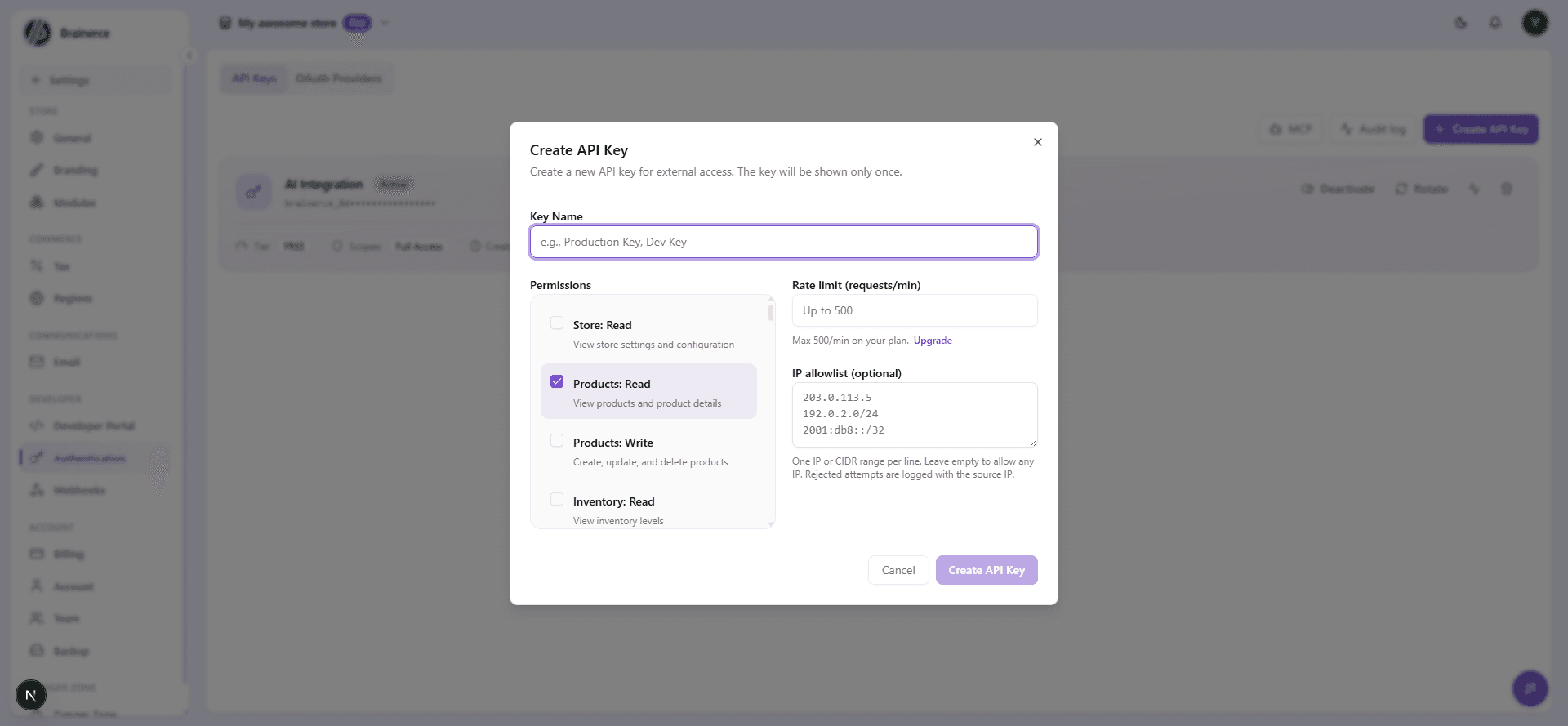
- On Settings → Authentication → API Keys, click Create API Key.
- Give it a Key Name that identifies the AI client, like "Claude Desktop" or "Support bot."
- Under Permissions, check only the scopes the AI actually needs, for example just Products: Read if it should only answer questions, or add the matching :Write scopes if it should also make changes.
- (Optional) Set a Rate limit below your plan's cap, and an IP allowlist (one IP or CIDR range per line) to restrict which addresses can use the key. Rejected attempts are logged.
- Click Create API Key and copy the value shown, because it's displayed only once.
What it can do
The Admin MCP server exposes its tools grouped by area:
| Area | Examples |
|---|---|
| Catalog | Physical products, variants, inventory and stock history, attributes, categories, brands, pricing, bulk updates and bulk publishing (no digital/downloadable products; see below) |
| Orders | Orders, orders created by hand, status labels, refunds, payments, fulfillment, parcels and labels, revenue & sales analytics |
| Customers & marketing | Customers, addresses, the contact-form inbox, coupons, discount rules, loyalty, gift cards, campaigns, sales channels and going live |
| Content | Pages, blog posts, media library, product reviews, contact forms |
| Store | Settings, currency and language, shipping zones, rates and classes, tax rates, apps, email templates and domains, webhooks, backups, team |
Every tool call is scoped to the permissions you granted: an OAuth session or API key with only products:read can't touch orders or customers, no matter what the AI asks for.
Some actions need you to sign in and will not work with an API key
This catches people out, because it is not a permissions problem you can fix by ticking another box. A whole group of actions only works when you connect with OAuth, meaning you signed in with your Brainerce account. Connect with an API key instead and the AI is told the action "requires OAuth authentication and is not available via API key", whatever scopes that key has.
Sign in with OAuth if you want the AI to touch any of these:
- Categories, tags and brands, including creating, renaming and deleting them
- Product options (attributes such as Size and Colour) and their values
- Product custom fields (the extra fields you define on products)
- Add-on options (modifier groups: toppings, gift wrap, warranty)
- Personalisation fields on a product, such as an engraving box
- Order bumps and bundle offers
- Shipping zones, rates and classes, and the shipping preview for an address (parcels and labels work with a key once a shipping app is connected)
- Pricing formulas
- Loyalty, all of it
- Store settings: name, currency, language, extra languages, activating the store, and switching a sales channel live
- Contact forms themselves (the inbox, replying included, works with a key)
- Email sending domains, resetting an email template, and sending yourself a test email
- Installing an app, and a channel's sync, tracking ids and integrations (configuring, pausing and removing an app work with a key)
Everyday work is unaffected: products, orders, refunds, fulfilment, orders created by hand, status labels, parcels and labels, customers, the contact-form inbox, coupons, discount rules, stock, pages, blog posts, media, webhooks, backups and the reports all work perfectly well with an API key.
The reason to care is what a confused AI does next. Asked to create a tag it cannot reach, an assistant does not always stop and tell you. It may do the nearest thing it can reach instead, and create a product with that name. If you asked for a category or a tag and something else appeared in your store, this is why. Reconnect with OAuth and ask again.
Which one am I on? If you pasted a brainerce_... key, you are on the API key. If a browser opened and you signed in to Brainerce, you are on OAuth. The OAuth commands are above, and switching is just reconnecting; nothing in your store changes.
Ebooks, courses and other downloadable products
The MCP server handles physical goods only. A connected AI cannot create a downloadable product, turn an existing product into a digital one, or upload, replace, or browse the files a digital product delivers. Those tools are deliberately left off this surface. If you sell ebooks, courses, printables, music, or anything else the customer downloads, set those products up yourself in the Brainerce dashboard. Asking Claude or ChatGPT to "add my new ebook" will not work, whichever permissions you granted.
Your connection stops working if your role in the store changes
If you connected by signing in (OAuth), your connection is tied to the permissions you held at the moment you approved it. The store owner changing your role, changing your permission checkboxes, or removing you from the team all cut that connection off. Your AI tool still lists Brainerce, and every action it tries is refused.
Being promoted breaks it too. This is the counter-intuitive one: moving from Staff to Manager stops the connection exactly as being demoted would, because Brainerce will not silently give an approved connection a different set of permissions than the one it was approved with.
Putting the old role back does not restore it, and neither does anything in the Brainerce dashboard. The only fix is to reconnect from your side: remove the Brainerce connector in your AI client, add it again using the same address as above, sign in and approve the permissions again. Nothing in your store changes when you do this.
How to tell this is what happened. The connector signs in fine but every action comes back refused or unauthorised, across the board rather than for one particular thing. If only some actions fail, that is a different problem: see some actions need you to sign in.
API keys are not affected by any of this. A brainerce_... key keeps working whatever happens to the person who created it, because it belongs to the store rather than to them. That cuts both ways, so a store owner removing someone should delete their keys too. See Team and permissions.
Best practices
- Grant only what's needed. If the AI just needs to answer questions, use read-only scopes. Add write scopes only for the parts of the store you actually want it to change.
- Lock a key to known IPs when the client runs from a fixed location (a server, a CI job). The IP allowlist on the Create API Key dialog rejects and logs everything else.
- Rotate or delete a key any time from Settings → Authentication → API Keys. This cuts off access immediately. For an OAuth connection, disconnect it from inside your AI client (remove the Brainerce connector there). A store owner can also cut an OAuth connection off from their side, by changing that person's role or removing them from the team, but that does nothing to API keys the person created: those have to be deleted separately, on the same Authentication page.
- Watch for leaked keys. The audit log on the Authentication page shows key creation, rotation, and sign-in attempts, including from unexpected locations, but it doesn't log the individual store changes an AI made, so there's no undo trail inside Brainerce for actions it already took.
- One store per credential. Every key and OAuth grant is bound to a single store, so connecting to Store A never exposes Store B's data.
What's next?
- MCP explains what MCP is and the safety model.
- Team and permissions controls what your human teammates can do.
Need help connecting an AI client? Email [email protected].
MCP
Let Claude, Cursor, ChatGPT, or another AI tool manage your store directly, creating products, updating orders and adjusting inventory, using the Model Context Protocol (MCP).
Apps & marketplace
Extend your store with payment gateways, shipping carriers and sales-channel connectors, installable in one click from the marketplace.