 Brainerce Help
Related products
Link products together as cross-sells, upsells, or related suggestions, and see the automatic Frequently bought together, Customers also bought and Products you may like suggestions Brainerce works out from your orders.
Brainerce suggests products to your shoppers in two different ways, and they never get mixed together:
- Links you make by hand. You link any product to others as a cross-sell, an upsell or a related product. This page explains them first.
- Automatic suggestions. Brainerce looks at your paid orders and works out which products customers really buy together, and what customers who bought a product went on to buy later. See Automatic suggestions: Frequently bought together and Products you may like below.
The links you make by hand live directly in the Products table as separate columns, so you link products inline without opening the product editor.
The three relationship types
| Type | Purpose | Where shops usually show it |
|---|---|---|
| Cross-Sells | Complementary items at a similar or lower price, chosen by you. | Product page (a shop built from the Brainerce starter titles it "Recommended for you") and cart page. |
| Upsells | "You might prefer this instead…", meaning a better version at a higher price. | Cart page, as an upgrade suggestion on the item, and product page. |
| Related Products | General "you might also like": broader discovery, same category. | Product page, below the description. |
Cross-Sells are your own list, not purchase data. Brainerce never calls your hand-picked Cross-Sells "Frequently bought together": that name is kept for the automatic suggestions below, which come from real orders. Where each list appears, and what heading sits above it, is decided by your shop itself rather than by this setting. Brainerce stores are built to order, so there is no theme and no theme documentation to check. Not every shop shows all three. If you link products here and nothing appears on the storefront, see A feature is not showing on my shop.
What Brainerce filters out before a shop shows a link
A link is a suggestion, not a promise that it will be shown. Brainerce leaves a linked product out when it is not Active (a Draft) or not published on the channel that is asking, so a link can look fine in the table and still be missing on one shop. A kit with nothing inside it is left out of upgrades too.
- An upsell shown as an upgrade in the cart has more rules. It is only offered when the upgrade is in stock, costs more than the product in the cart, and costs no more than 30% more by default (the cap is a channel setting,
cartUpgradeMaxPriceDeltaPercent, that the dashboard does not show and a developer can change). A link to a cheaper product, or to one at double the price, never appears as a cart upgrade. If the product in the cart is a kit, its price is the price worked out from its contents. - Out of stock is the shop's call elsewhere. For cross-sells and related products Brainerce still sends a linked product that is out of stock, together with a flag saying so, and the shop decides whether to hide it.
- Each sales channel has switches for these. Under Sales Channels, open the channel's settings and the Upsell & Cross-sell tab: Frequently Bought Together (on the product page), Customers Also Bought (on the product page) and Cart Upgrade Banner (upgrade suggestions for items in the cart). All are on by default. With Cart Upgrade Banner off, Brainerce sends no cart upgrades to that channel at all. With Frequently Bought Together off, Brainerce sends no automatic "Frequently bought together" group to that channel. Your hand-picked Cross-Sells are not affected, because this switch only controls the automatic group (a shop built from an older version of the starter may still hide them). Frequently Bought Together is a setting your shop reads, so a shop built before it existed may ignore it.
How to add product links
All three types work the same way:
- Go to Products in the sidebar.
- Scroll the products table right until you see the Cross-Sells, Upsells, and Related Products columns.
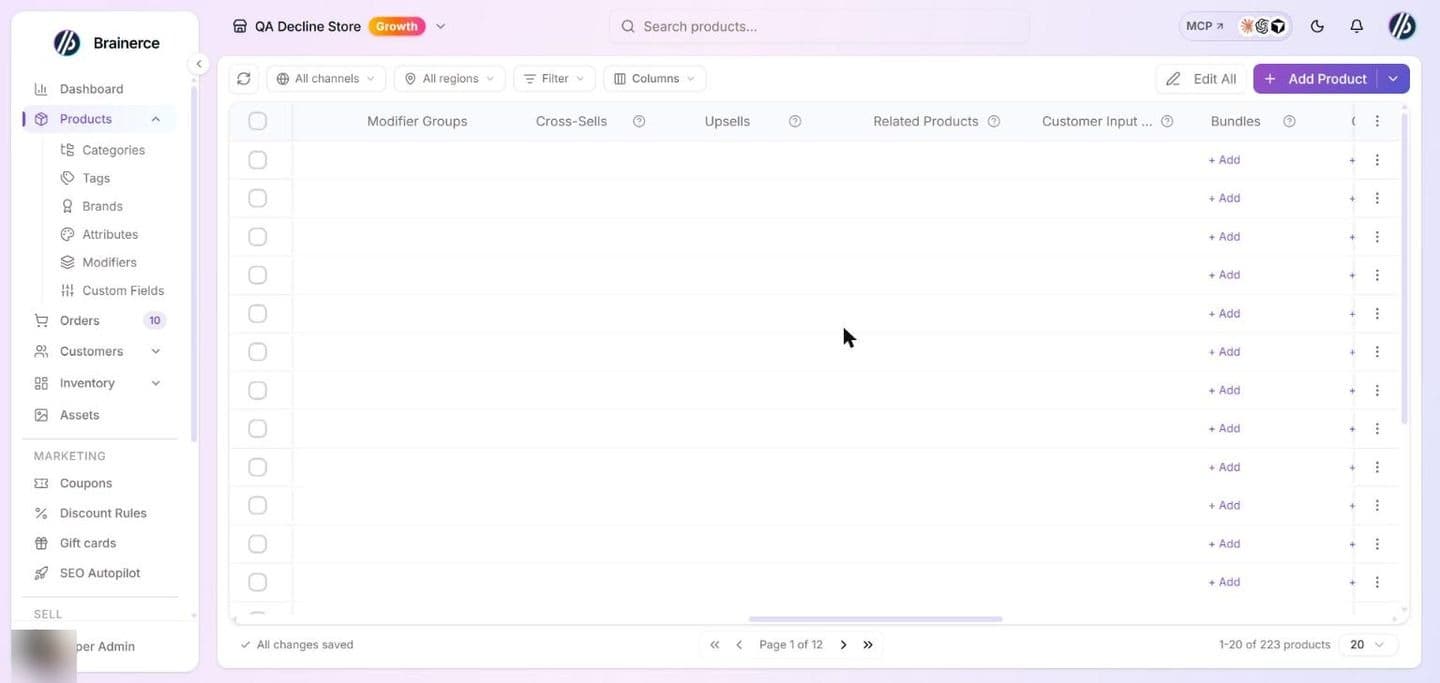
- Click the + Add cell in the relevant column for the product you want to link from.
- An inline product picker opens in the cell. Search by name or SKU, then check the products to link.
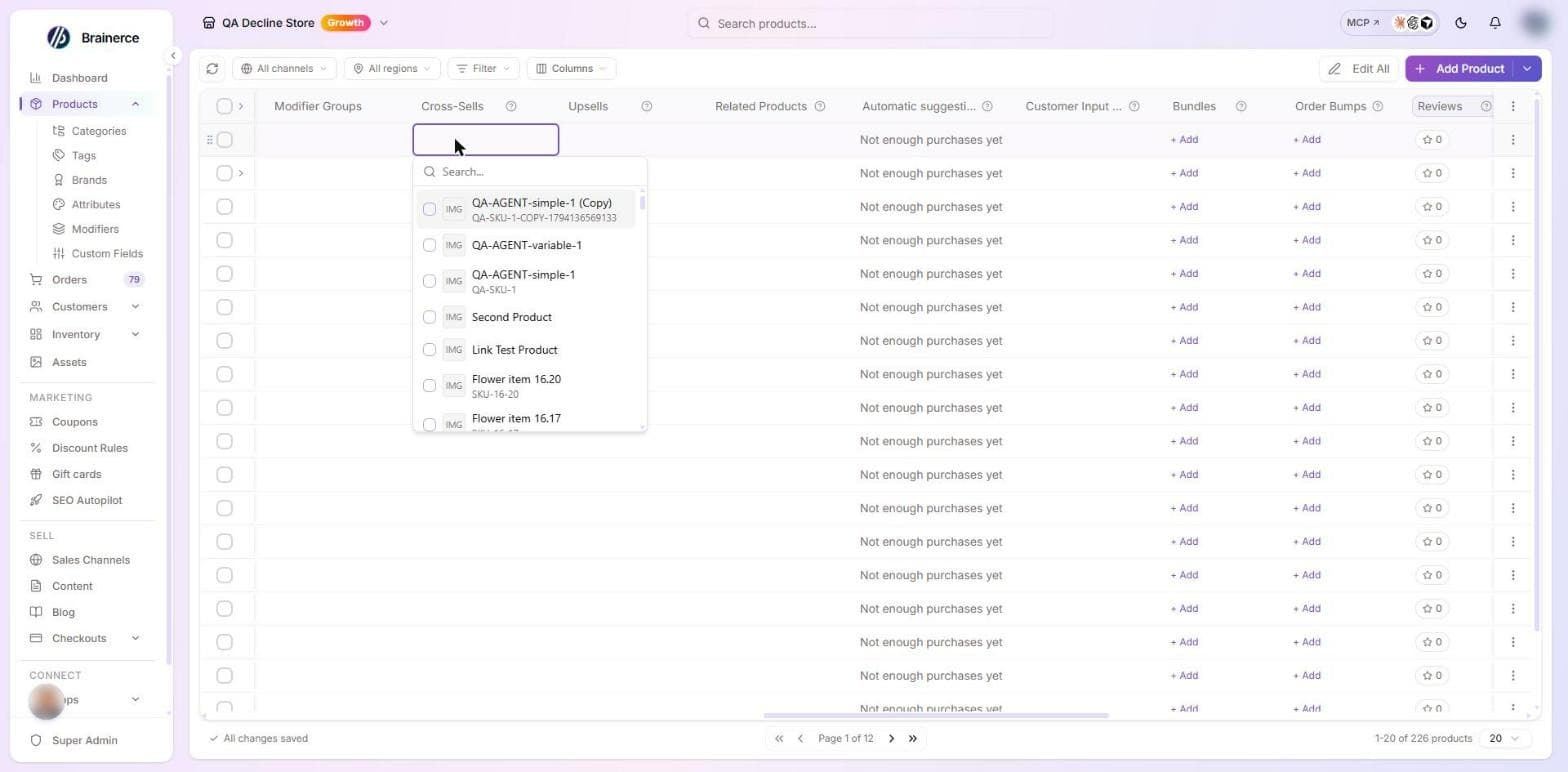
- Click outside the picker to close it. The links save automatically.
To remove a link, open the same cell and uncheck the product.
Choosing the right type
Cross-sell when the add-on is clearly complementary and doesn't replace the main item:
- Laptop → laptop sleeve, USB hub, mouse
- Camera → extra lens, memory card, camera bag
- Phone → screen protector, charging cable
Upsell when you have a higher-end version of the same thing:
- Standard headphones → noise-cancelling model
- 1TB external drive → 2TB version
- Monthly subscription → annual plan
Related when the products share a context but neither cross-sells nor upsells applies cleanly:
- Products in the same category
- Products from the same collection or brand
- "Also popular in Electronics"
When in doubt, use Related, because it's the broadest bucket and most shops show it on every product page.
Tips
Link bidirectionally for accessories. If AirPods → case (cross-sell), also link case → AirPods. Customers browsing accessories should find their way to the product the accessory fits.
Don't mix types. If you link the same product as both a cross-sell and a related product, your shop may show it twice. Pick one type per relationship.
Use upsells sparingly. An upsell shown on every product dilutes its effectiveness. Reserve it for products where the upgrade is genuinely worth the extra cost, and where the price difference is modest enough to convert.
Surface bundle offers. If you have a bundle offer set up on a product (e.g. "Camera + Lens, save 15%"), cross-sell the lens from the camera's Related Products so customers browsing the lens can discover the bundle.
Automatic suggestions: Frequently bought together and Products you may like
Besides the links you make, Brainerce can suggest products on its own, from what your customers actually bought. A shop shows the result as one extra group, after your hand-picked lists, on the product page and in the cart. A group is never a mix: it is either "Frequently bought together" or "Products you may like".
| Group | What it is | When it appears |
|---|---|---|
| Frequently bought together | Products that real customers bought in the same order as this one. | Only when your orders show it (see the rules below). Nothing is guessed to fill it. |
| Customers also bought | What customers who bought this product went on to buy in a different order, earlier or later. | Only when enough of your customers have ordered more than once (see the rules below). It is never filled with similar products. |
| Products you may like | Products from the same category or with the same tags. | When there is no "bought together" data for that product yet, and at least two similar products exist. |
"Frequently bought together" and "Customers also bought" are different things. The first is products that shared one order (one basket). The second is what the same customers bought across separate orders. A pair that only ever appeared in one basket belongs to "Frequently bought together" and is not counted again under "Customers also bought". If a product has none of the groups, no automatic group is shown for it. Your hand-picked Cross-Sells, Upsells and Related Products are unchanged and always come first. A product you picked by hand is never repeated in the automatic group.
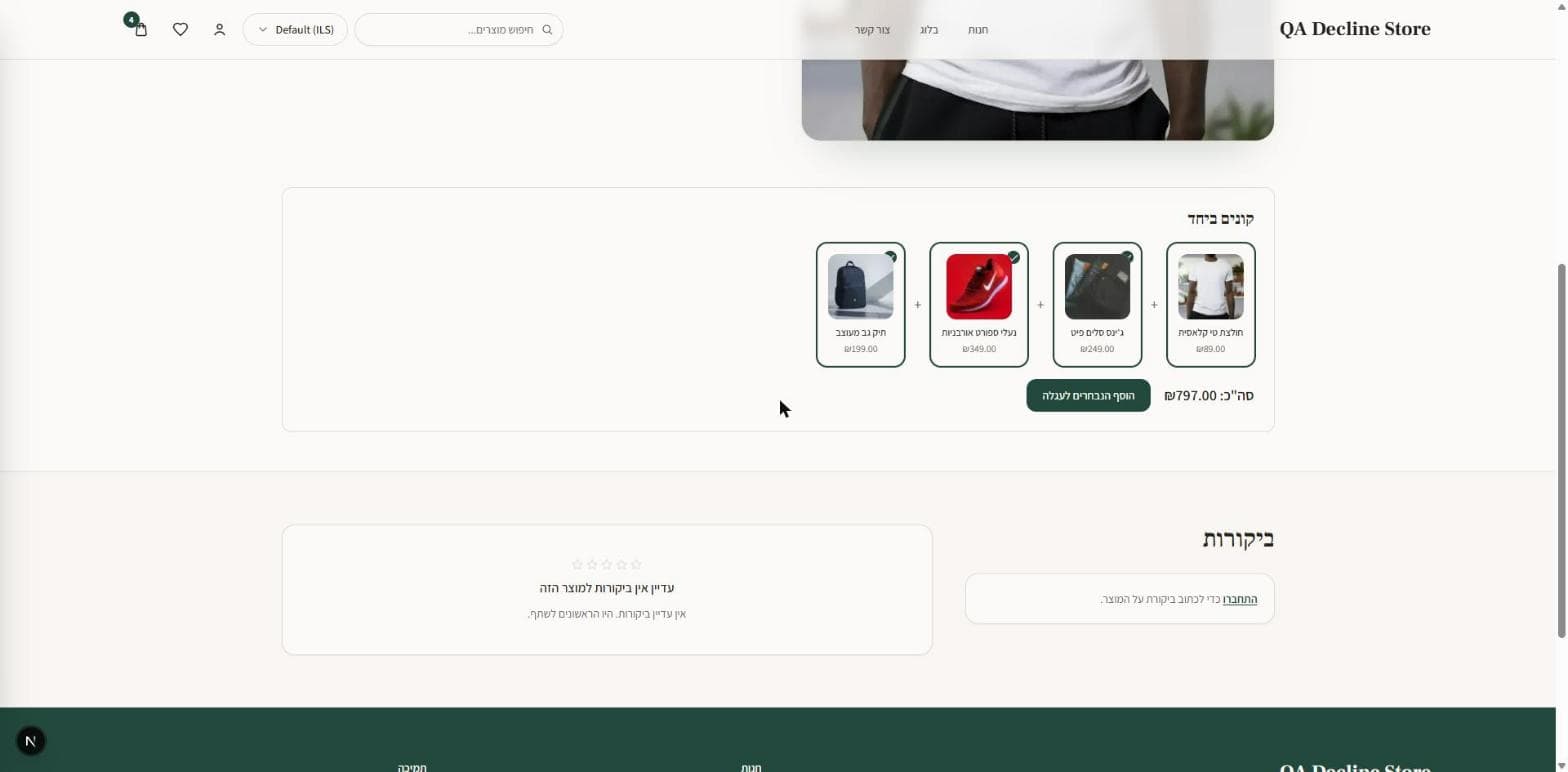
Here is how a shop built from the Brainerce starter shows the "Frequently bought together" group on a product page (this example store is in Hebrew): the product itself, then the products customers bought with it, each with a checkbox, the total of the checked items and an add-to-cart button.
When does "Frequently bought together" appear? Counting rules
- Only paid orders count. Test orders, cancelled orders and fully refunded orders do not. An order with a partial refund still counts.
- The last 12 months. Older orders drop out of the count.
- Imported orders count too, but only the order lines that match a product that exists in your Brainerce catalog. Lines for products Brainerce cannot match are skipped, so a store with many imported orders can have fewer suggestions than you expect.
- Your store needs enough orders first. At the moment that is 30 counted orders for the whole store (all channels together). A product pair must also have been bought together in at least 3 orders, and the product itself must appear in at least 5. Below that, no "Frequently bought together" group is shown, and a new store sees none. The Automatic recommendations card shows your count against the number you need.
- It is recalculated once a day, and you can start it yourself with Compute now on that card. A pair from this morning's orders can take until the next calculation to appear.
- "Frequently bought together" does not follow a person from one order to the next. It counts products that shared an order. What customers bought across separate orders is the separate "Customers also bought" group below.
When does "Customers also bought" appear? Counting rules
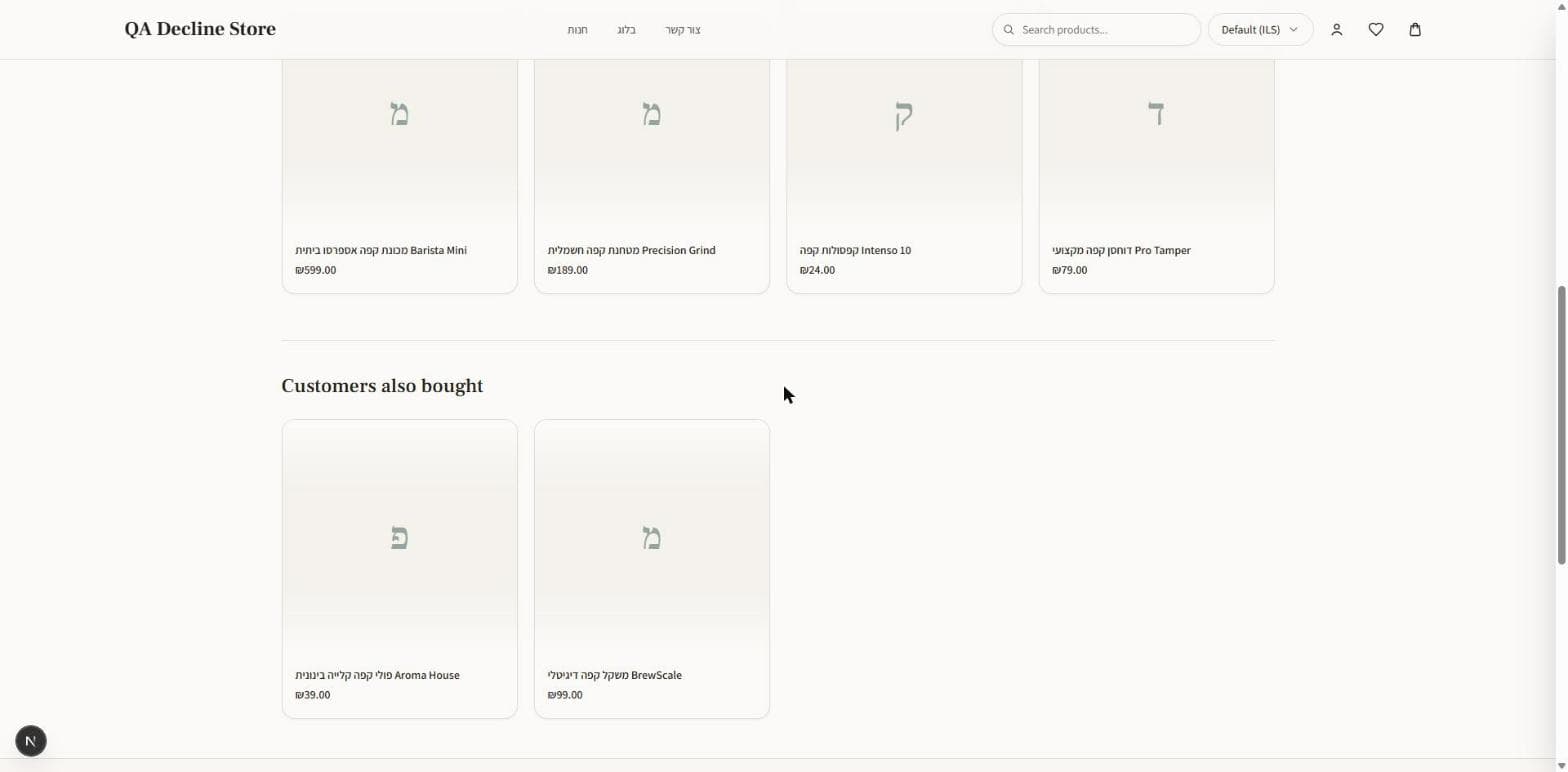
Here is how a shop built from the Brainerce starter shows it on a product page: its own section, with its own heading, below the "Products you may like" group. The product names in this example store are in Hebrew.
"Customers also bought" answers "what did people who bought this go on to buy?". Brainerce works it out per customer, from the same paid orders and the same last 12 months as "Frequently bought together", and recalculates it with the same daily run (Compute now starts it too).
- It needs customers who ordered more than once. A customer counts for a pair of products only when they bought one product in one order and the other in a different order. A store with mostly one-time buyers has nothing to show, and for a new store that is normal. At the moment a store needs at least 20 customers with two or more orders; a product pair must have been bought this way by at least 3 customers, and the product itself by at least 5.
- Customers are matched by email address (the customer id when an order has no email). A guest order and a signed-in order with the same email count as one person. Orders with neither are skipped. A customer who bought a very large number of different products, such as a reseller or a shared placeholder email, is left out so they do not distort the results.
- Brainerce stores only a count per pair of products, never who bought them. No customer, email address or name is kept in the suggestions.
- It is never topped up with similar products. The heading says customers bought these, so it only shows products customers really bought. When there is not enough data, the group is simply not shown. You cannot add products to it by hand.
- It is on the product page only, not in the cart. A product already shown in "Frequently bought together" or in your own links is not repeated in it.
Where to see the automatic suggestions
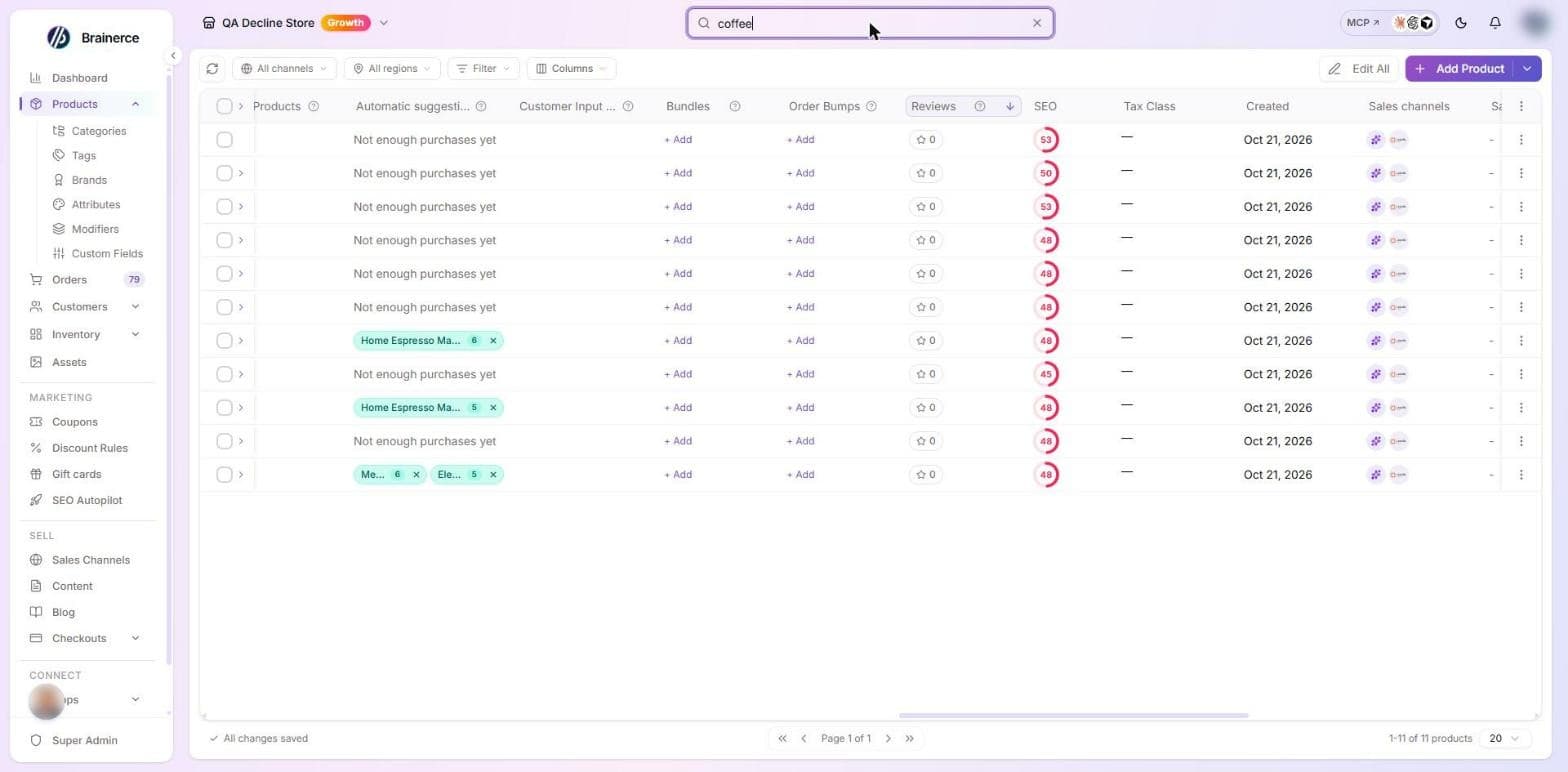
- Go to Products and open the table's column menu. The Automatic suggestions column is hidden until you turn it on.
- For each product the column shows up to three suggested products as small chips, with the number of orders they were bought together in. The column is read only: you cannot add a suggestion there, only hide one.
How to stop an automatic suggestion
-
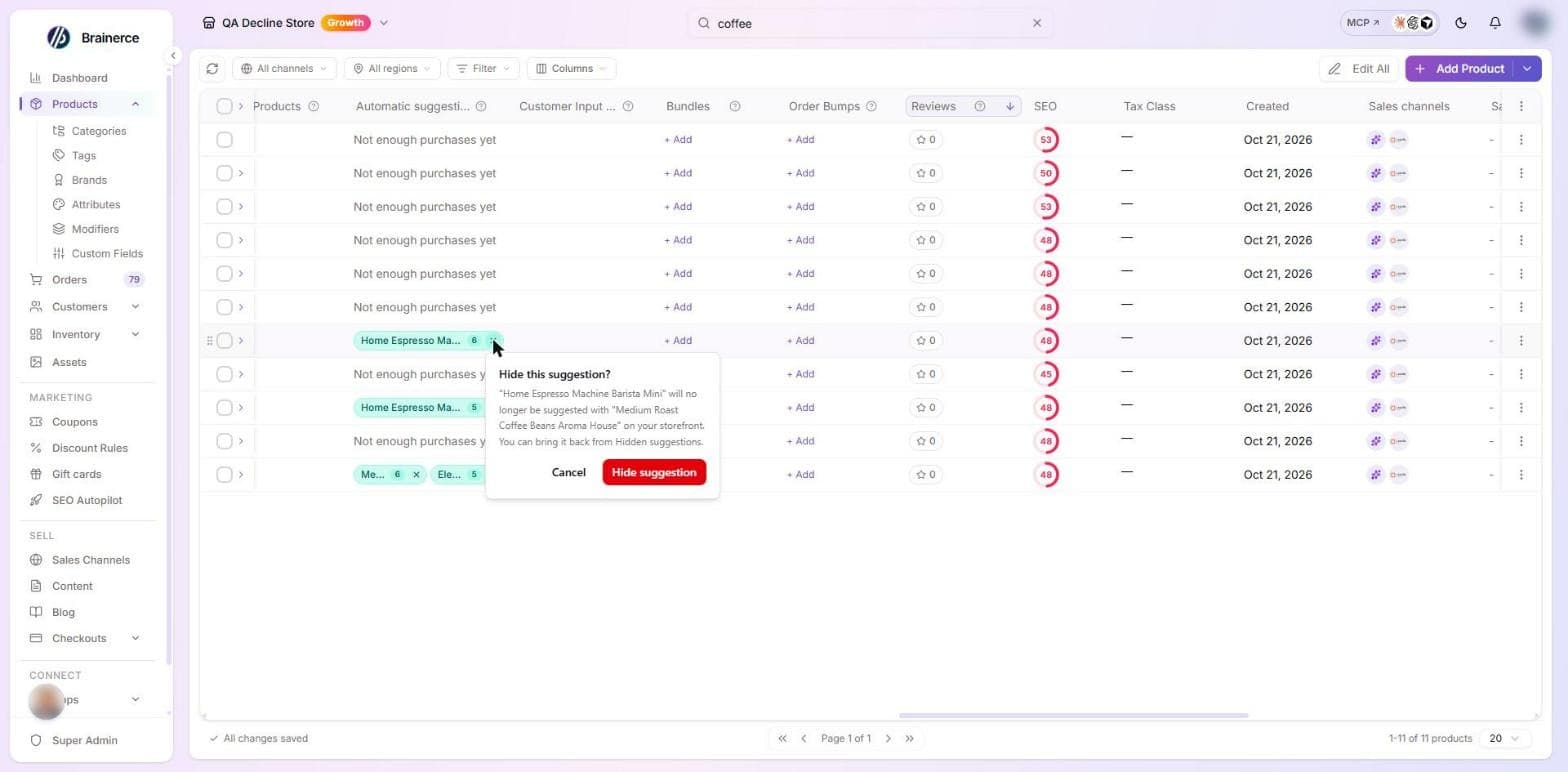
Hide one suggestion. In the Automatic suggestions column, click the x on the chip, then confirm Hide suggestion. That product is no longer suggested with that one, on every channel, in every automatic group (Frequently bought together, Customers also bought and Products you may like). It stays hidden after every recalculation. Hiding works in one direction: hiding "case" under "phone" does not hide "phone" under "case".
-
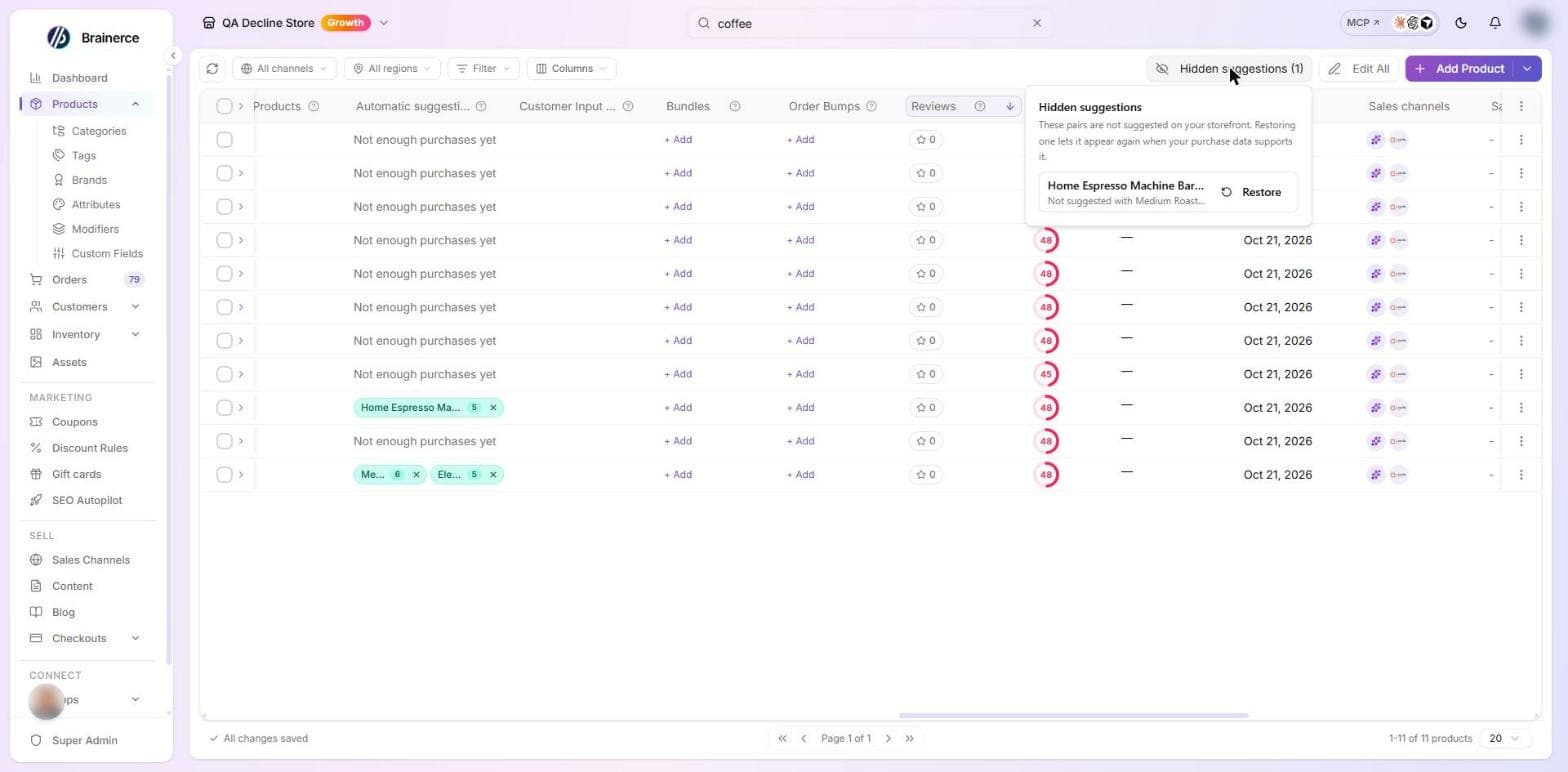
Bring it back. Use Hidden suggestions above the table and click Restore. A restored suggestion appears again only when your orders still support it.
-
Turn off Frequently bought together for a channel. Under Sales Channels, open the channel's settings, Upsell & Cross-sell tab, and switch Frequently Bought Together off. The automatic "Frequently bought together" group then disappears from that channel.
-
Turn off Customers also bought for a channel. On the same tab, switch Customers Also Bought off. The "Customers also bought" group then disappears from that channel, and "Frequently bought together" is not affected. The two switches work independently.
What you cannot do:
- You cannot exclude a whole category or tag. Hiding works one pair at a time.
- There is no separate switch for Products you may like. To stop one similar product, hide that pair; the group itself stays on.
- You cannot edit or reorder an automatic suggestion, and you cannot add one by hand. To control what is shown, make a Cross-Sell, Upsell or Related link yourself.
Check how the automatic suggestions are doing
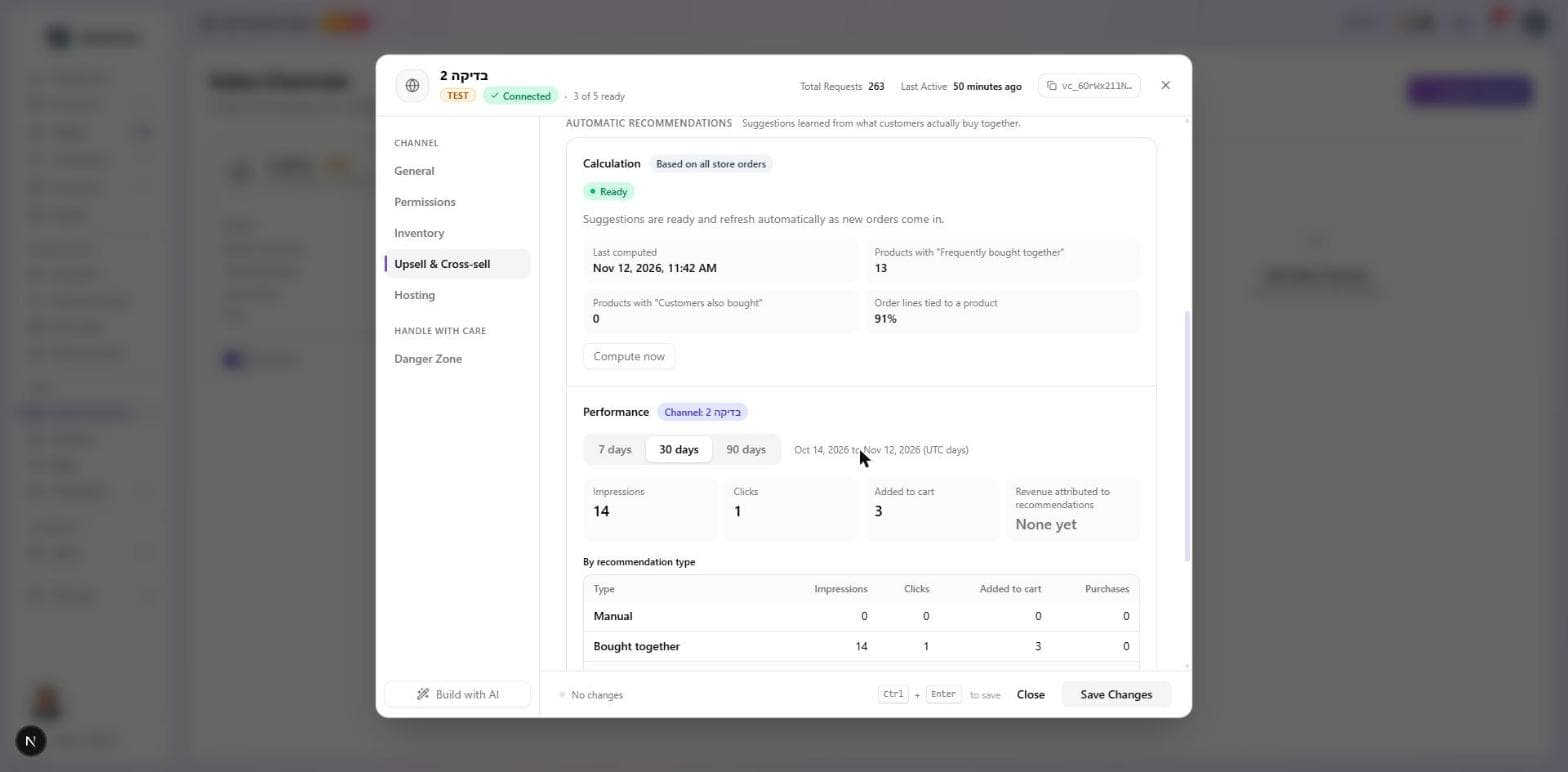
Open Sales Channels, the channel's settings, Upsell & Cross-sell tab, and find the Automatic recommendations card. It has two blocks:
- Calculation (based on all store orders): the status, your paid orders counted against the number needed, when it last ran, how many products have suggestions and how many order lines could be tied to a product. The status is Not computed yet, Computing, Computation failed (the suggestions from the last good calculation keep showing), Not enough data or Ready. Compute now starts a calculation; if one is already running it says so instead of starting a second.
- Performance for this channel: impressions, clicks, added to cart, purchases and revenue attributed to recommendations, for the last 7, 30 or 90 days.
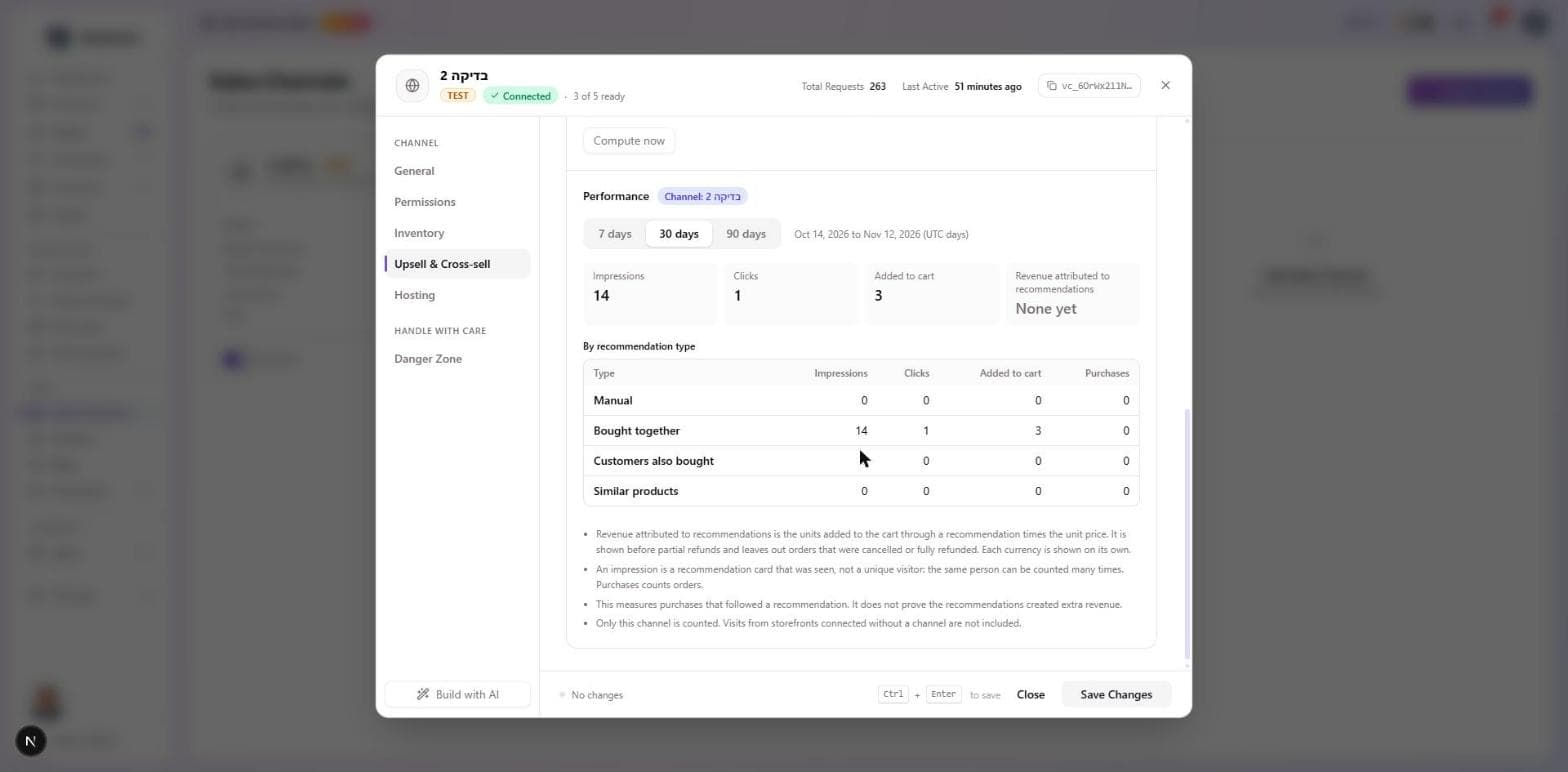
Read these numbers with care:
- An impression is a recommendation card that was seen on a page, not a visitor. The same person looking at the same card on three days counts three times.
- Revenue attributed to recommendations is what shoppers bought after adding a product to the cart from a recommendation, before partial refunds, and without orders that were cancelled or fully refunded. It shows purchases that followed a recommendation. It does not prove those purchases would not have happened without it.
- When one product is added from different recommendations, each keeps its own units. If a shopper adds one unit from a hand-picked Cross-Sell and two more from "Frequently bought together", the order credits 1 unit to the Cross-Sell and 2 to the automatic group, with the revenue of each. Units a shopper added without using a recommendation are not credited to anything.
- The performance block counts only the channel you opened. Visits from a shop connected without a channel are not in it.
- A shop built before this feature may not report impressions and clicks at all, so its numbers stay at zero until the shop is updated.
What's next?
- Order bumps are add-on upsells at the checkout page.
- Bundle offers offer a second product at a discount when a specific product is in the cart.
- Discount Rules automatically discount carts that contain specific product combinations.
Order bumps
Show a one-click add-on offer at checkout, a product the customer can add without leaving the checkout flow.
Customer reviews and review photos
Let customers rate your products and attach photos, decide whether photos wait for your approval, and take down a single bad picture without losing the review.