 Brainerce Help
Create a coupon
Step by step, open the Create Coupon form, set the discount, limits, validity, and stacking, then publish and save.
This article walks through creating a coupon from the dashboard. New to coupons? Start with the Coupons overview first.
Two ways to create a coupon
Open Marketing → Coupons in the sidebar. The Add Coupon button (top right) is a split button: clicking it opens the full form, and the ▾ chevron beside it offers two paths:
| Method | Best for |
|---|---|
| Add via form (the default) | A complete coupon with targeting, limits, and validity. The recommended path, walked through below. |
| Add empty row | A quick code with just the essentials. It adds an editable row at the top of the table; fill a code and value and it saves. |
This guide walks the full form path; for the quick path, jump to Quick-create with an inline row.
1. Open the coupons page
In the sidebar, find Marketing → Coupons. The list shows every coupon in your store with its discount, status, usage count, and validity window.
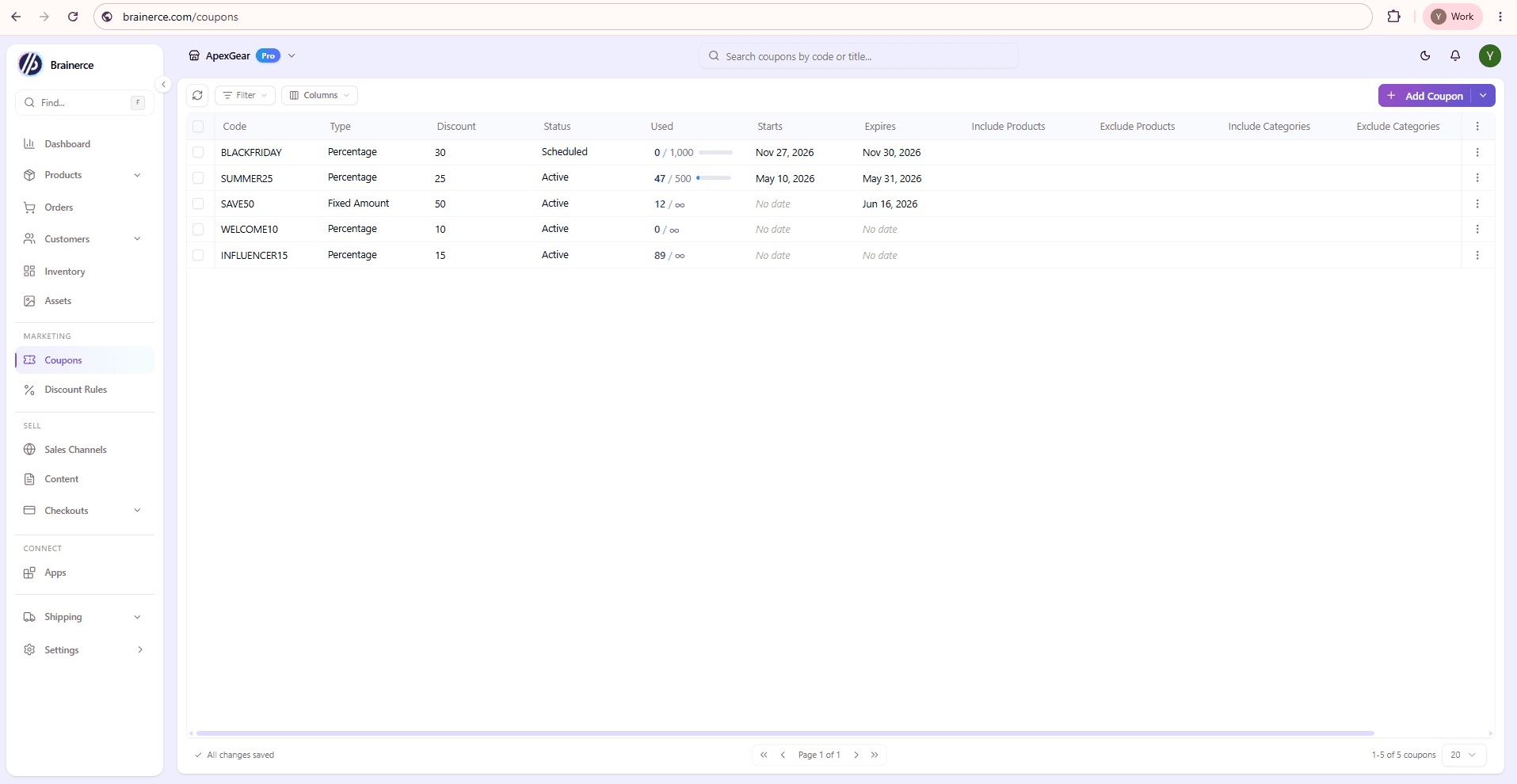
Each row shows:
- Code is what customers type at checkout (always stored uppercase).
- Type is Percentage or Fixed Amount.
- Discount is the value (
25= 25%,50= $50 off). - Status is Active, Scheduled, Disabled (paused), or Expired. Active and Scheduled are both redeemable; what actually gates a coupon is its Start Date, so use Scheduled purely to mark an upcoming promo in your own list.
- Used is the live redemption count with a mini progress bar, e.g.
47 / 500;89 / ∞means no cap. See Track redemptions. - Starts / Expires is the validity window. "No date" = always on.
2. Open the Create Coupon form
Click Add Coupon. A two-column form opens, headed "Set up a new discount code for your store", organized into five sections (Discount Setup, Usage Limits, Validity Period, Discount Stacking, Product Targeting) plus a Publish-to-platforms footer.
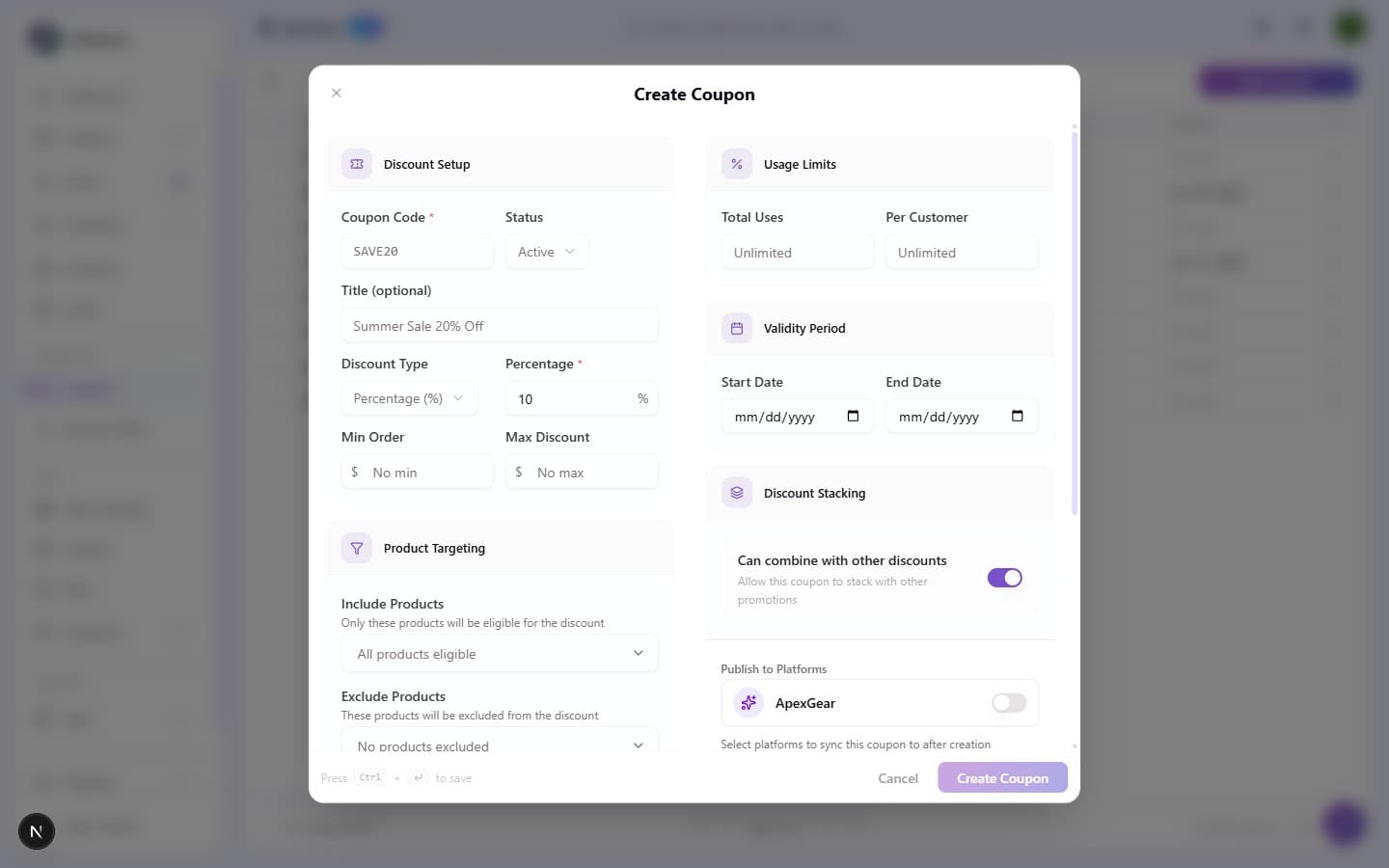
Sensible defaults mean you only fill in what's specific to your campaign: Status = Active, Discount Type = Percentage at 10%, usage limits Unlimited, validity no dates, and Can combine with other discounts = on.
3. Fill in the coupon code, discount and limits
Here's the same form configured for a 20%-off campaign with a $100 minimum order:
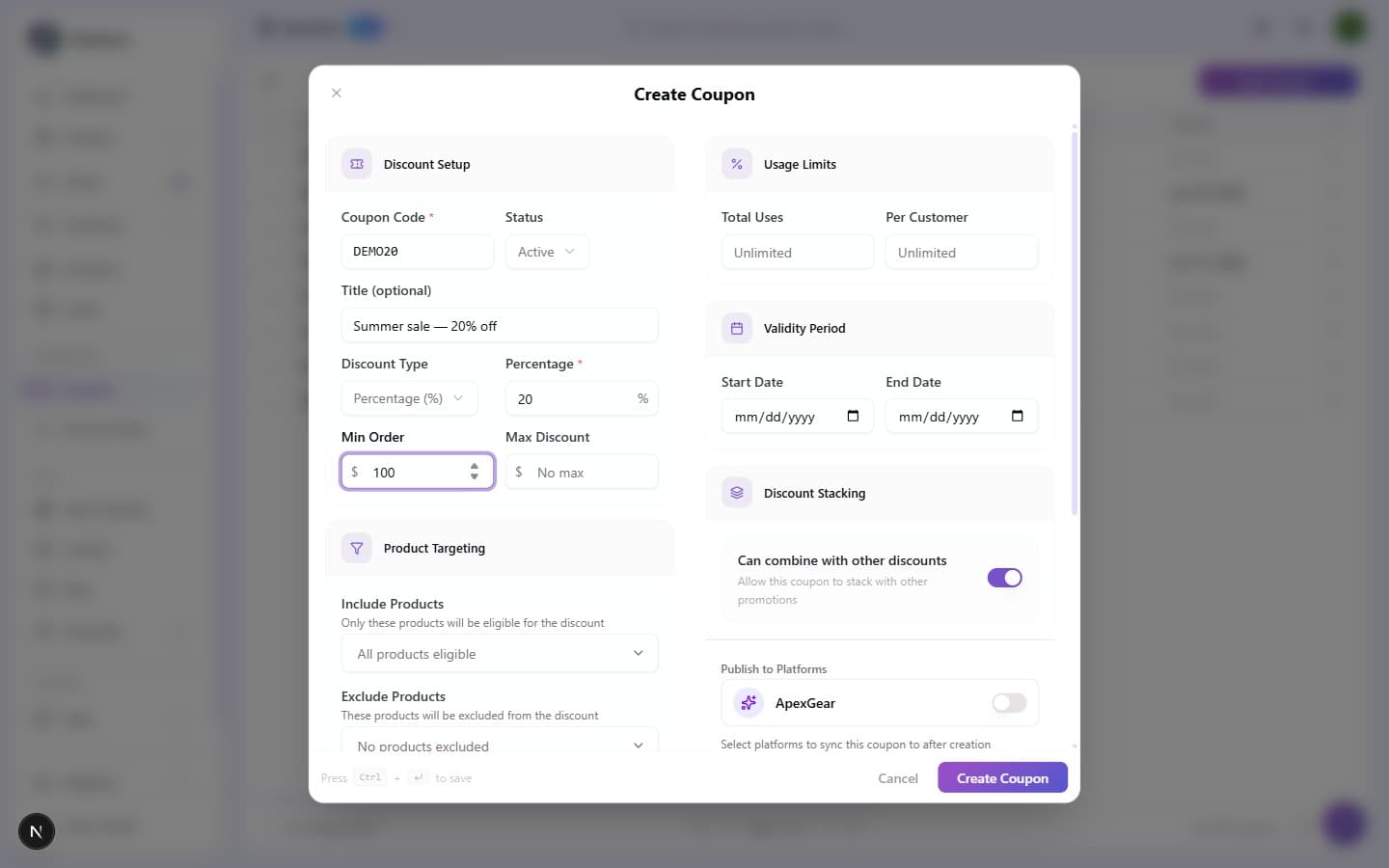
Discount Setup
- Coupon Code (required) is the string customers type. It's uppercased automatically and shown in monospace; keep it short and memorable (
DEMO20, notdemo 20). - Status is
Active(live, subject to any dates you set),Scheduled(same, but flags it as an upcoming promo), orDisabled(paused without deleting). Set a Start Date if you want it to hold until a given moment; before that date shoppers are told the coupon is not yet active. - Title (optional) is an internal label for your team (e.g. "Summer Sale 20% Off"). It doesn't change the discount or the code.
- Discount Type is
Percentage (%)orFixed Amount(in your store currency). - Percentage / Amount (required): for Percentage,
20means 20% (capped at 100); for Fixed Amount,50means 50 off the cart. - Min Order is the minimum cart subtotal before the coupon applies. Leave blank for no minimum.
- Max Discount caps the total discount. A 30% coupon on a $1,000 cart gives $300 off unless you cap it: set
100and it stops at $100.
Usage Limits
- Total Uses is total redemptions across all customers before the coupon stops working. Blank = Unlimited.
- Per Customer is how many times one customer can redeem it.
1for typical first-order discounts.
Validity Period
- Start Date / End Date set the window the coupon is valid in. Leave empty for no date restrictions. Before the Start Date the shopper sees "Coupon is not yet active"; after the End Date, "Coupon has expired."
Discount Stacking
- Can combine with other discounts (on by default): when off, no automatic discount rule will apply on top of this coupon (the coupon is the only discount on the order). When on, a rule stacks only if the rule is also set to combine with coupons, so both sides must agree (see Stacking). Either way, only one coupon code applies per order.
Product Targeting
By default a coupon applies to the whole cart. To scope the discount to specific products or categories (or exclude items), or, on multi-region stores, to limit the coupon to specific regions, use the Product Targeting section, covered in full in Target products & regions.
Publish to platforms
At the bottom, pick any connected platforms to sync this coupon to after you create it. Only platform apps you have actually installed appear here, and the one in the marketplace today is Google. If you have installed nothing, the list is empty and the coupon stays a Brainerce-only code. Leave them all off for the same result.
Shopify and WooCommerce are not on this list and never will be. There is no Shopify or WooCommerce app to install, and nothing is ever pushed to either one. They exist only as one-time, read-only import sources inside the Migration Tool. See Import from another platform. Meta is also absent here, because the Meta catalogue does not support coupons.
4. Save the coupon and it goes live straight away
Click Create Coupon (or press Cmd/Ctrl + Enter; Esc cancels). The modal closes and your new coupon appears at the top of the list, Active, with 0 uses.
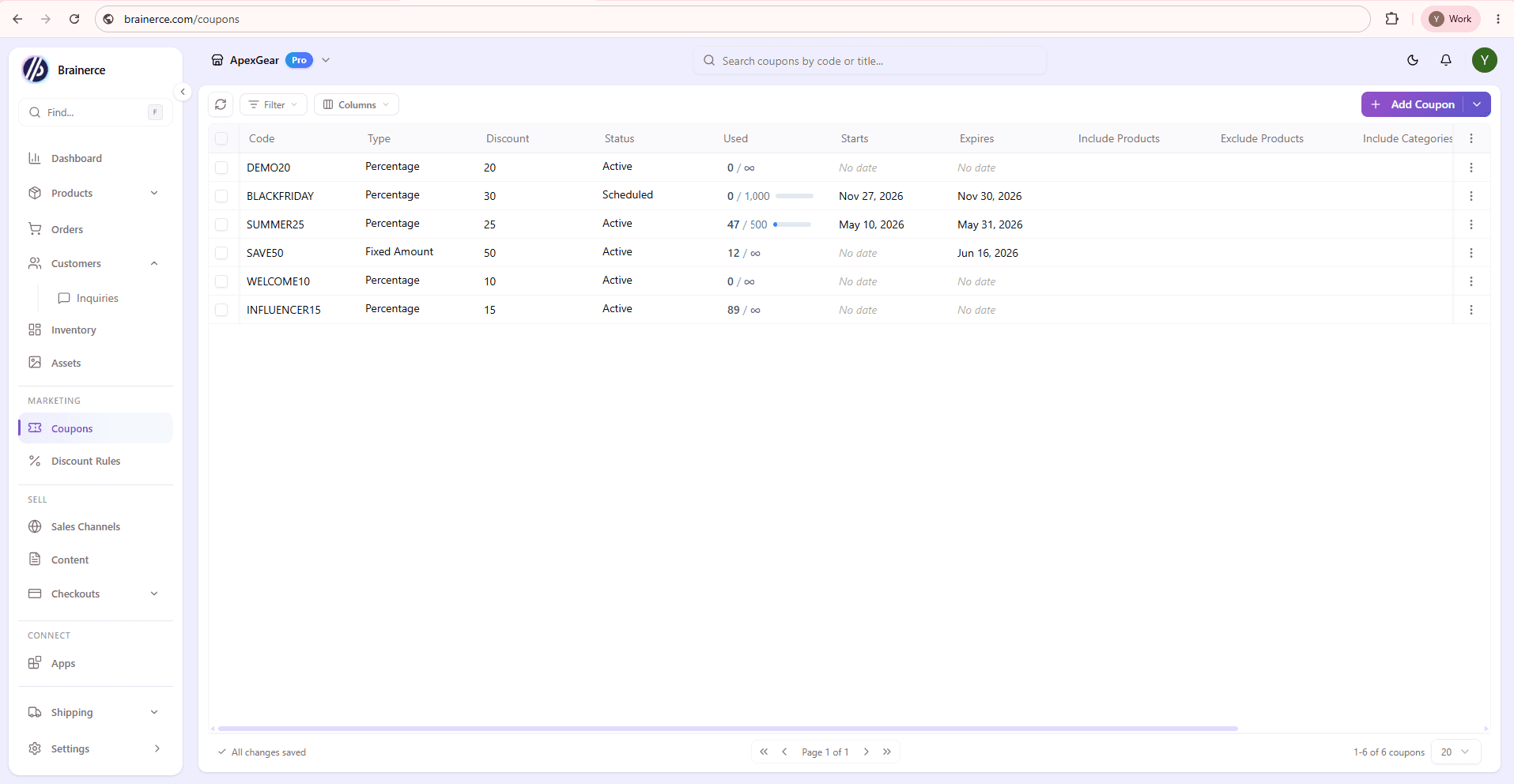
Share the code by email, social, an influencer agreement, a QR code, or a sitewide banner. The moment a customer enters it at checkout the discount applies and the Used counter on the row ticks up.
Quick-create with an inline row
Need just a code and a value? Use Add Coupon ▾ → Add empty row. A blank row appears at the top of the table. Type the Code, set the Value, Type, and Status right in the row, and it saves automatically once the code is filled. Add targeting, limits, or a validity window later by opening the row's ⋯ → Edit in Form (see Manage & edit coupons).
Field reference
| Field | Section | Notes |
|---|---|---|
| Coupon Code | Discount Setup | Required. Uppercased automatically; no spaces. |
| Status | Discount Setup | Active / Scheduled / Disabled. |
| Title (optional) | Discount Setup | Internal label only; doesn't affect the discount. |
| Discount Type | Discount Setup | Percentage or Fixed Amount. |
| Percentage / Amount | Discount Setup | Required. Percentage capped at 100. |
| Min Order | Discount Setup | Minimum cart subtotal to qualify. Blank = none. |
| Max Discount | Discount Setup | Caps the discount value. Blank = none. |
| Total Uses | Usage Limits | Blank = unlimited. |
| Per Customer | Usage Limits | Per-customer redemption cap. |
| Start Date / End Date | Validity Period | Blank = always on. |
| Can combine with other discounts | Discount Stacking | Off = no automatic rule stacks on this coupon. |
| Include / Exclude Products | Product Targeting | Scope the discount to / away from products. Search needs 2+ characters. |
| Include / Exclude Categories | Product Targeting | Same, at the category level. |
| Region Restriction | Product Targeting | Multi-region stores only. |
| Publish to platforms | Footer | Sync to your installed platform apps after creation. Not Shopify or WooCommerce, which are import-only. |
What's next?
- Target products & regions limits the coupon to specific products or regions.
- Manage & edit coupons covers editing, bulk-editing, and per-channel overrides.
- Coupon recipes let you copy a ready-made campaign.