 Brainerce Help
General store settings
Set your store name, currency, language, country, timezone, contact details, and homepage SEO.
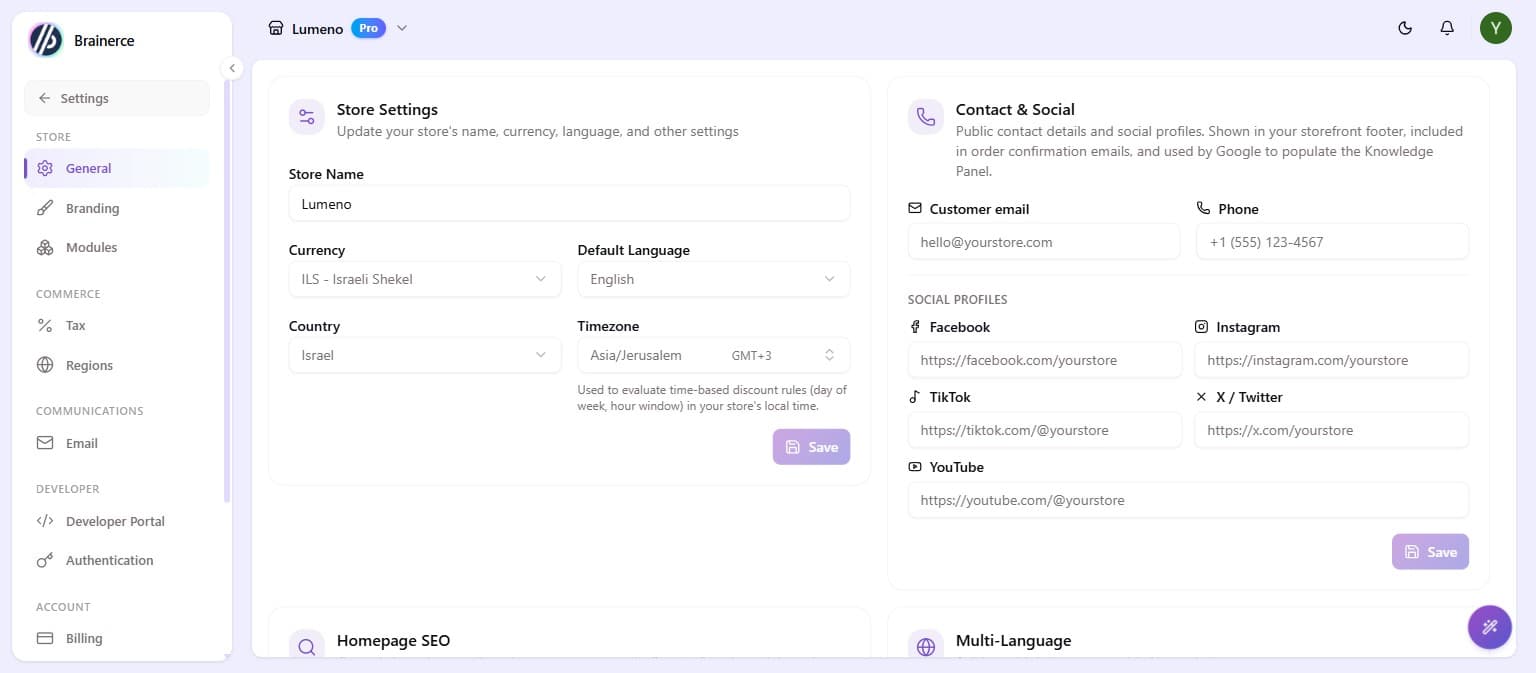
Your store's core details live under Settings → General. The page is split into a few sections, each with its own Save button.
Store details
- Store Name is your store's name.
- Currency is the currency you sell in. Changing the currency relabels every price; nothing is converted. A product at 100 ILS becomes a product at 100 EUR, and so does every sale price, shipping price, voucher amount and gift card balance, so set the currency before you add prices. Existing orders keep the currency they were placed in.
- Default Language is your main content language. Changing the default language does not translate anything: every product or category text you have not translated is simply shown as the new language. To sell in more than one language, see Multi-language below.
- Country is your store's country, and it also affects which payment providers are available.
- Timezone is used for time-based features like scheduled discount rules.
Make your changes and click Save.
A connected AI assistant (ChatGPT, Claude, Cursor) can change every field on this page for you, currency and language included. It asks you to confirm a currency change once the store has orders, and it refuses one while a checkout is in progress. The same rules apply: changing the currency relabels every price and converts nothing, and changing the language translates nothing. See Connect an AI assistant.
Contact & social
Add a customer email and phone, plus links to your Facebook, Instagram, TikTok, X (Twitter), and YouTube profiles. These appear in your storefront footer and order confirmation emails, and help search engines understand your business.
Homepage SEO
Write a meta description for your storefront homepage: the summary that shows in Google and link previews. Click Generate with AI to draft one automatically, then review and save.
Multi-language
Turn on Multi-Language to sell in more than one language. Add the languages you want and Brainerce can translate your content with AI; a progress badge shows how complete each translation is. The picker holds a fixed list of ten languages and you cannot add one that is not on it. See Translate products into another language for what translates, what stays the same in every language, and why your website may still show the wrong one.
What's next?
Need a hand? Email [email protected].