 Brainerce Help
Points & rewards
Set how fast customers earn points, how much a point is worth, and build the reward catalog they redeem from.
⛔ You cannot set this up yet. Loyalty has not been released to stores, so there is no Loyalty entry in your sidebar and none of the screens below exist for you today. This describes how it will work once it ships. See what Brainerce does not do.
Two numbers define your whole points economy, plus one switch that decides which money they apply to. Everything else builds on them.
The two numbers that matter
Open Customers → Loyalty → Settings → Basics:
| Setting | Meaning | Default |
|---|---|---|
| Points earned per $1 spent | How fast customers accumulate points. | 1 |
| Points to redeem $1 (Advanced) | How much a point is worth at redemption. | 20 |
| Earn on subtotal (Advanced) | Which money counts as "$1 spent". See below. | On |
Together they set your give-back rate: at the defaults, 1 point per $1 with 20 points redeeming $1 means customers get ≈ 5% back. The Basics card shows this live as you type, and most stores land between 3% and 10%.
You can also rename points (e.g. "Glow Points", "Coins") in Name for points, and the name shows everywhere, including the storefront.
Which money earns points: shipping and VAT don't count
"$1 spent" is not the number the customer paid at checkout. By default (Earn on subtotal, on) points are earned on the merchandise subtotal after discounts: the value of the items once any coupon or discount has come off, and before shipping and before VAT or sales tax.
So an order of $100 of items with a $20 coupon, $10 shipping and $18 VAT charges the customer $108, and earns points on $80. At the default rate that is 80 points, not 108.
Turn Earn on subtotal off in Advanced and points are earned on the full order total instead, shipping and tax included. That is more generous and easier to explain to customers, but it means you pay loyalty on money that was never margin: you are giving points back on the courier's fee and on tax you merely collect and hand over.
Careful: VIP tier qualification measures spend differently: it counts the full order total, shipping and VAT included. A customer can therefore climb tiers faster than their points balance suggests. See VIP tiers.
Pending points and the return window
New purchase points don't become spendable immediately. They sit as pending for the length of your Pending window (Settings → Advanced, default 14 days), then confirm automatically overnight. This mirrors your return policy: if the order is cancelled, or refunded in full, before the window closes, the points are cancelled with it, so nobody spends points from a purchase they returned. A partial refund does not cancel them; see below.
- Pending points are excluded from the spendable balance, and they show in the member's ledger in your dashboard.
- Whether the shopper sees them depends on your storefront. The hosted loyalty widget and stores scaffolded with
npx create-brainerce-storeshow a "500 points arrive on 21 September" line automatically. A custom storefront only shows it if it was built to readpendingPointsfrom the API, and older ones were not: they display the spendable balance alone, so a customer who ordered this morning sees 0 points with nothing explaining why. If yours does that, the fix is on the storefront, not in these settings, and it is the most common "the club is broken" report we get. - Set the window to match your actual return policy.
0confirms points on the next nightly run. - Points expiry is off by default. Turn it on in Advanced to expire confirmed points after a set number of days. Use it generously (a year, not a month), and read the next section before you switch it on.
A partial refund keeps the points, a full refund takes them back
Refunding part of an order does not touch the points earned on it. The customer keeps every point, including the points earned on the part you refunded. There is no setting that changes this, and no way to claw back a share of them automatically. Only cancelling the order, or refunding it in full, reverses the points, and then the whole earn for that order goes back.
This is the same rule the rest of the order already follows: after a partial refund the promo code the customer used stays spent and their lifetime spend is not reduced either. See What a partial refund does not undo.
If you are refunding most of a large order and do not want the customer keeping the points from it, take them off by hand: open the member in the Members tab, Adjust the balance down and give a reason. The adjustment shows in their ledger like any other movement.
Expiring points sends no warning email
Brainerce does not email customers before their points expire, and does not email them when it happens. The nightly job removes the points from the balance and records the deduction in the member's ledger. That is all.
So expiry is not, by itself, a nudge to come back. A deadline nobody is told about is just a silent deduction, and the first your customer hears of it is when they open your store and find a smaller balance than they remember, which is the kind of surprise that ends a loyalty programme rather than driving a visit.
If you want expiry to actually bring people back, one of these has to happen:
- Your storefront shows the balance and its expiry date, so the deadline is visible where customers already look (this needs the loyalty SDK; see the integration guide).
- You send the reminder yourself as an email campaign before the cut-off.
Enrollment
Auto-enroll (Advanced, on by default) enrolls a customer into the program automatically with their first paid order. Turn it off if you want customers to explicitly join through your storefront instead, which is useful when joining itself carries a bonus you want them to notice.
Building the reward catalog
The Rewards tab is what customers see when they redeem. Each reward card shows its point cost up front.
You start with three rewards, not an empty catalog
Pressing Activate loyalty program creates three starter rewards for you: $5 off, $10 off and $25 off, priced at 100, 200 and 500 points at the default ratio, and written in your store's currency and language. The cheapest one is deliberately the "100 points = $5 off" example the activation screen shows you, so that sentence is true the moment you finish.
They are ordinary rewards, and nothing about them is special or protected. Rename them, change the amounts, deactivate them, or delete them. Each is set to allow up to 1000 redemptions per customer, because a points program is a loop: a customer earns, spends, and earns again, and a cap of one would strand their second batch of points.
They are created once, on first activation only. If you delete all three and later save your settings, they do not come back. Switching the program off and on again does not recreate them either. To get one back, add it yourself under Add reward.
Deleting a reward a customer already redeemed turns it off instead
Delete only removes a reward that nobody has ever redeemed. The moment one customer has spent points on it, Delete deactivates it rather than removing it, and the reward disappears from the catalog customers see while staying in your list marked inactive.
That is deliberate, and it is not something you can override. The redemption record is the proof of what a customer paid points for, and the coupon it minted is still live and still spendable by that customer. Deleting the reward outright would leave their spent points unaccounted for and a working discount code with nothing explaining where it came from.
So a reward you no longer want has exactly one end state once it has been redeemed: inactive. It stops being offered, past redemptions keep working, and the points ledger still adds up.
To add one, click Add reward:
- Discount type: percentage off or a fixed amount off.
- Point cost is auto-suggested from your ratio (a $5 reward at 20 points/$1 suggests 100 points), and you can override it. Cheaper rewards drive frequent small redemptions; expensive ones drive saving behavior.
- Minimum order (optional) means the redeemed coupon only applies at or above this cart value. The classic guard against redeeming $10 off a $10 item.
- Max uses per customer sets how many times one customer can redeem this specific reward.
- Minimum tier (optional) gates the reward to a VIP tier and above; it shows a tier badge on the card. See VIP tiers.
When a customer redeems, their points are deducted and a one-time coupon is minted just for them. It applies at checkout like any coupon and works across your sales channels.
The redeemed coupon never expires, and only that customer can use it
Two things about every coupon the loyalty programme mints are worth knowing before you set your point costs:
- It is locked to the customer who redeemed it. The code only works for that one member. If they post it on a deals forum or pass it to a friend, it does nothing for anybody else, because it is not a bearer code, so a leaked loyalty code is not the incident it would be with a normal promo code.
- It never expires. No end date is set when the coupon is minted and there is no field for you to set one, not on the reward and not on the coupon afterwards. It stays redeemable indefinitely.
The second one is the one that costs money. Every unredeemed reward stays an open discount on your books forever, and customers do come back and use two-year-old coupons. If you need the liability to be bounded, the only lever you have is Minimum order on the reward. It does not expire the coupon, but it does mean the discount can never be claimed against a tiny basket.
The same is true of birthday gift coupons and referral welcome coupons: every coupon the loyalty programme mints behaves this way.
Tip: start with three rewards on a ladder: small (reachable after ~2 orders), medium, and aspirational. A reachable first reward is what makes new members care.
What the programme emails customers: only the birthday gift
This surprises most merchants, so it is worth stating plainly: the birthday gift is the only email the loyalty programme ever sends. There is nothing to switch on, and no template to fill in, because the emails do not exist.
Brainerce does not send:
- "Your points are about to expire", even when you have switched points expiry on.
- "You've earned enough points for a reward."
- "Your points from last week are now confirmed and ready to spend."
- "Congratulations, you've reached Gold". There is no tier promotion or demotion notice of any kind.
- "You've been enrolled in the loyalty programme."
The practical consequence: between purchases, your loyalty programme is invisible to customers unless your storefront shows it. Points accrue silently. A member can sit on a spendable balance for a year and never be told. That is the single most common reason a well-configured programme produces no repeat orders.
Two ways to close the gap, and you want both:
- Have your storefront display the points balance, the reward catalogue and tier progress via the loyalty SDK. See the integration guide.
- Send the announcements yourself as email campaigns ("you have 340 points waiting").
Watching a member's points
In the Members tab, every enrolled customer shows their balance, lifetime earned, and tier. From the row you can:
- Open the ledger to see every transaction: earned, redeemed, expired, adjusted, reversed, each with its status (pending / confirmed / cancelled).
- Adjust the balance to add or remove points manually with a reason (goodwill gesture, support resolution). The adjustment is logged in the ledger.
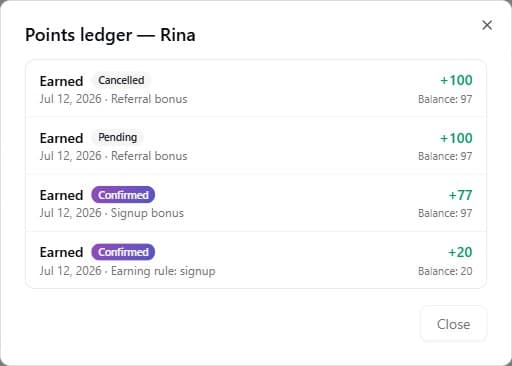
The same loyalty card appears on each customer's profile page under Customers.